
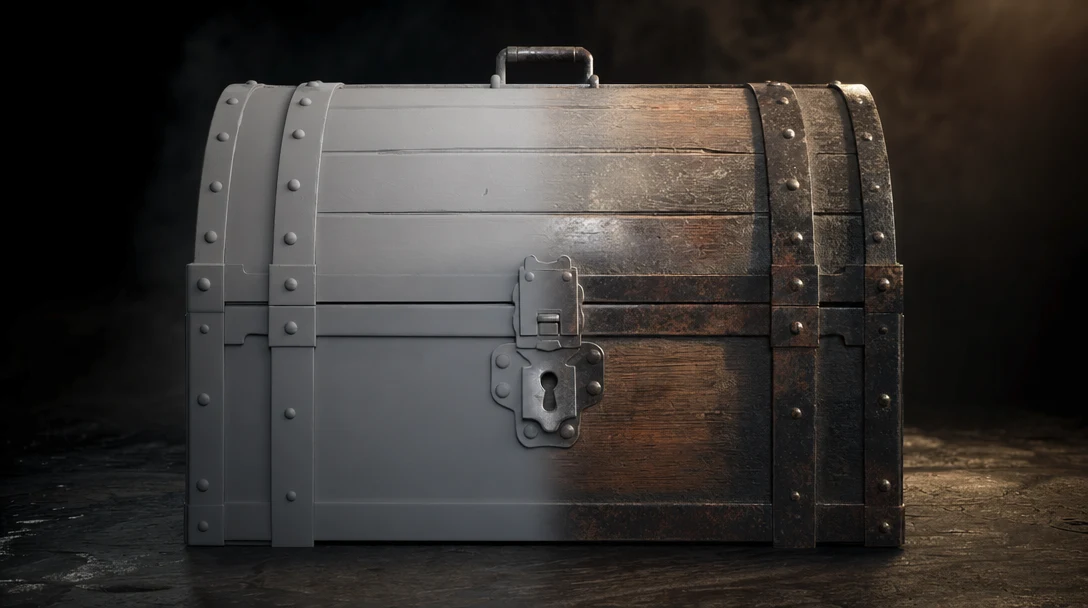
An AI texture generator can hand you a convincing-looking surface in seconds. Whether that surface survives contact with real lighting, real UVs, and the asset sitting next to it is a separate question, and it is the question this guide is actually about. The generation is the cheap part. The checks are where textures either ship or get sent back.
Quick Answer
Start from clean UVs, prompt for the *material* and never the lighting, generate a full PBR set (base color, roughness, metalness, normal, plus AO or height when depth matters), apply each map to the matching slot in the correct color space, then test on the real mesh under two lighting setups and a full rotation. A texture is production-ready only when it fits the UVs without seams, responds to light instead of carrying baked-in shadows, and matches the surface language of its neighbors. Budget for a cleanup pass either way: AI output is a strong starting material, not a finished one.
What You Need Before You Generate
AI texturing fails most often because of what happens before the prompt, not the prompt itself. Line up these inputs first:
A model with usable UVs. AI texture tools paint onto the UV layout. If the UVs are overlapping, stretched, or wildly inconsistent in scale (texel density), every generated map inherits those problems. If your mesh came straight from a generator, check the unwrap before texturing. See UV unwrapping for AI 3D models for what a clean layout looks like.
A clear material target. "Make it look cool" produces inconsistent surfaces. "Worn brushed steel with light scratches, no rust" produces a usable map you can iterate on.
A target spec. Know the resolution, the file format, and the engine you are shipping to before you generate. A 4K texture set is wasted on a background prop; a 512px set will look muddy on a hero asset filling the frame.
Reference for consistency. If this asset belongs to a set (a weapon family, a furniture line, a building kit), gather the existing materials so the new surface can match them rather than drift.
A way to see PBR channels separately. You need to inspect base color independent of roughness and normal. A flat preview hides most of the problems this guide warns about.
Three Generators Wearing One Name
"AI texture generator" covers three genuinely different machines, and the checks you owe each one are different. Identify which you are using before you trust anything it outputs.
UV-projection texturing paints a base color (and sometimes full PBR maps) directly onto an existing model's UV space from a text prompt or reference image. Tools built into 3D generators such as Meshy, Tripo, and Hunyuan work this way. The strength is that the texture fits the model; the risk is seams and stretching where the UVs are weak.
Tileable material synthesis generates a flat, seamless material swatch (brick, fabric, concrete) that you tile across a surface. This is closer to a traditional material library and is great for environments, but it does not "know" your model.
Image-to-material decomposition takes a single photo or generated image and splits it into PBR channels, estimating roughness, normal, and height from one flat image. Convenient, but the estimated maps are guesses and often need correction.
A practical pipeline mixes all three: synthesized tileable materials for large surfaces, UV-projection for hero detail, and image-to-material for matching a specific reference.
Step-by-Step: Texturing a 3D Asset With AI
Step 1: Prepare and inspect the UVs
Open the model and look at the UV layout, not just the 3D preview. Check three things: no overlapping islands (unless intentional, like mirrored geometry), even texel density across the surfaces that matter, and seams hidden in low-visibility areas. Fix the unwrap here. No texture generator can compensate for a broken layout.
Step 2: Write a material-first prompt
Describe the *surface*, not the scene. Good prompts name the material, its condition, and its scale: "aged oak planks, satin finish, fine grain, subtle wear at edges." Avoid lighting words ("dramatic shadows," "sunlit," "glossy highlights") because they bake lighting into the base color, which is the single most common way AI textures fail in production. Add negative direction when the tool supports it ("no moss, no cracks").
Step 3: Generate the full PBR set, not just color
Request base color *plus* the supporting maps your target needs. For most real-time and rendered work that means roughness, metalness, and a normal map; add ambient occlusion and height for surfaces with depth. A color-only output may look fine in a preview and then read as a flat sticker the moment real lights hit it. If your generator only outputs color, plan a second pass to derive the missing channels, and treat any auto-derived normal map with suspicion. See what is a normal map and what are PBR materials for what each channel is doing.
Step 4: Apply the maps to the correct slots
Plug each map into the matching material slot in your engine or DCC tool, and confirm the color space: base color and AO are sRGB, while roughness, metalness, normal, and height are linear/non-color data. A roughness map loaded as sRGB will look subtly wrong in every shot and is a frequent source of "the material looks off but I can't say why."
Step 5: Test on the real mesh, not a flat plane
Apply the material to the actual asset in context. Rotate the model fully. Move a light around it. The texture must hold up across the whole surface and from every angle a viewer will see, not just the front-facing preview the generator showed you.
Step 6: Check seams, tiling, and scale
Walk the UV seams looking for visible breaks in pattern or color. For tileable materials, repeat them across a large surface and look for an obvious repeat or a "hotspot" that draws the eye. Confirm the physical scale reads correctly: wood grain or fabric weave that is too large or too small instantly looks fake even when the texture itself is high quality.
Step 7: Match the asset family and save the direction
Place the textured asset next to its siblings. Materials in a set should share a visual language, wear level, and color temperature. Once a direction is approved, save it, the prompt, the maps, and the settings, so the next asset in the set starts from the same place instead of drifting. Teams almost never need one texture in isolation; they need a consistent surface language across dozens of assets.
Step 8: Optimize for the target
Resize maps to the resolution the asset actually needs, pack channels if your engine supports it (for example roughness, metalness, and AO into one RGB texture), and export in the right format. For game work, texture budget and memory matter as much as fidelity, which ties directly into how to optimize AI 3D assets for games.
Settings and Production Checklist
Run every textured asset through this before calling it done. The table doubles as a settings reference and a pass/fail audit.
Check | What to set or verify | Why it matters |
|---|---|---|
UV quality | No overlaps, even texel density, hidden seams | Bad UVs cause stretching and visible seams no prompt can fix |
Map set | Base color + roughness + metalness + normal (+ AO/height) | Color-only textures read as flat under real lighting |
Resolution | 512–1K props, 2K standard, 4K hero/closeup | Oversized maps waste memory; undersized maps look muddy |
Color space | sRGB for base color/AO; linear for roughness/metal/normal/height | Wrong color space subtly breaks material response |
Lighting test | At least 2 light setups, model fully rotated | Reveals baked-in shadows and one-angle textures |
Tiling/seams | No visible repeat, no broken seams on the mesh | Seams and obvious tiling break immersion in-engine |
Physical scale | Grain/weave/detail sized to real-world proportion | Wrong scale reads as fake even at high fidelity |
Set consistency | Matches wear, hue, and finish of related assets | Asset families should feel related, not random |
Cleanup budget | Output saves more time than it costs to fix | An AI texture should reduce work, not add it |
Format/packing | Correct export format, channels packed for target engine | Keeps the asset within performance and pipeline limits |
This checklist is far more useful than asking whether the texture looks impressive in a single render.
The Channel That Decides Production: Roughness
The full texture-versus-material distinction has its own guide; if you need it, what are PBR materials covers each channel and why a material is more than an image. For texturing specifically, the one channel worth fixating on is roughness. It is the channel most AI generators get wrong or skip, and it is the one that decides whether a surface reads as production work.
Roughness is what separates wet stone from dry stone, polished plastic from matte plastic, and worn leather from new leather, none of which the base color alone can express. A color-only output will look fine in a flat preview and then sit dead under real lights, because the surface has no instructions for how to scatter them. So when an AI texture generator hands you only color, the practical takeaway is not "study the theory of materials," it is "you are missing the channel that does most of the work." Generate or derive roughness deliberately, inspect it on its own, and do not trust an auto-estimated roughness map until you have seen it react to a moving light.
Common Mistakes and How to Fix Them
AI-generated textures fail in ways that are easy to miss in a quick preview and expensive to discover after the asset is in a scene.
Baked-in lighting and shadows. The base color contains shading from the generator's imagined light. *Fix:* prompt for flat, evenly lit material descriptions; avoid lighting words; if shadows are baked in, regenerate or paint them out before they double up with scene lighting.
Stretching and smearing. Detail pulls apart across the surface. *Fix:* this is almost always a UV problem, not a texture problem. Re-unwrap and even out texel density, then regenerate.
Color-only output mistaken for a material. Looks great flat, flat in 3D. *Fix:* generate or derive the full PBR set; never ship base color alone for a lit surface.
Obvious tiling and hotspots. A repeating element draws the eye on large surfaces. *Fix:* use higher-resolution tiles, add variation maps or detail breakup, or switch to UV-projection for that surface.
Set inconsistency. Each asset has its own wear and color temperature. *Fix:* lock a master direction and reuse the prompt and settings; review new assets next to existing ones, not in isolation.
Wrong physical scale. The pattern is the right material at the wrong size. *Fix:* adjust UV tiling or texel density so the real-world scale matches neighboring assets.
Bad auto-generated normals. An estimated normal map invents relief that conflicts with the silhouette. *Fix:* inspect the normal in isolation, dial back its strength, or regenerate from a cleaner source.
Most of these are workflow problems, not generation problems. They surface when you review the texture *on the model, in a scene, and next to its siblings*, which is exactly the review most fast generation loops skip.
The Five-Test Gauntlet Before a Texture Ships
A texture is verified when it survives this sequence, run in this order because each test is cheaper than the one after it:
Two-light test. View under a neutral studio setup and a directional/colored setup. Baked-in shadows and broken roughness show up immediately.
Full rotation. Orbit the model 360 degrees and over the top. A texture that only works from the hero angle is not done.
In-context placement. Drop the asset into its real scene at real scale. Many textures that pass on a turntable fail next to other materials and a grounded camera.
Channel isolation. View base color, roughness, metalness, and normal separately. Each should make sense on its own.
Target-specific check. For games, confirm texture size and memory against budget and check it at distance and at the right LOD. For VFX, confirm it holds up under the shot's camera and lighting. For product visuals, confirm material believability at closeup.
If it passes all five, it is production-ready. If it only passes the first, you have a concept, which is still useful, just not finished.
Texturing One Asset vs Texturing a Set
Almost nobody needs a single texture. They need a quiver of forty arrows that look like they came from the same fletcher, or a furniture line where every wood grain shares the same age. The moment you scale past one asset, the bottleneck stops being "can I generate a good map" and becomes "can I reproduce the exact same surface decision dozens of times without it drifting." That is not a prompt skill; it is a bookkeeping problem.
Re-prompting from scratch for each asset is where consistency dies: the wear creeps, the hue warms, the roughness wanders. The fix is to make the texturing decision once and replay it, capturing the prompt, the channel set, the color-space settings, the resolution, and the lighting setup you reviewed under, then applying that exact recipe to the next mesh.
A node-based workspace like Customuse handles this by keeping texturing inside a visible graph instead of an export step: a mesh flows into UV checks, into texturing (with providers such as Meshy, Tripo, or Hunyuan available as nodes), into a review scene lit the way the final shot will be, into export. Approve the direction once and the graph becomes the master copy the rest of the set inherits; AI agents can run it across a batch while you adjust individual nodes and keep the surfaces in sync. The skill ceiling of texturing has quietly moved from making one map to keeping a hundred of them honest. See repeatable 3D workflows with nodes for how that graph is structured.
FAQ
What is an AI texture generator?
An AI texture generator is a tool that creates surface detail for 3D assets from a text prompt or reference image. Depending on the tool it can paint color directly onto a model's UVs, synthesize a tileable material swatch, or decompose an image into PBR channels. The best ones output a full map set, not just a base color image.
Are AI-generated textures production-ready?
Not automatically. They earn that label only after you verify UV behavior, the full PBR map set, correct color space, lighting response across multiple setups, resolution against the use case, and consistency with related assets. Treat the output as a strong starting material that usually needs a cleanup pass.
What is the difference between a texture and a material?
A texture is one image wrapped onto a surface; a material is the full set of maps describing how that surface responds to light. A texture is one ingredient, a PBR material is the finished recipe. What are PBR materials breaks down each channel in full.
What should I test first on an AI texture?
Test it under at least two lighting setups while rotating the model fully. This single check exposes the two most common failures at once: baked-in shadows in the base color and textures that only look right from one angle. If it falls apart there, it needs revision before any other check matters.
Why does my AI texture look stretched or smeared?
Almost always because the model's UVs are stretched, overlapping, or uneven in texel density. The generator paints onto whatever layout exists, so it inherits the problem. Re-unwrap the model and even out texel density, then regenerate the texture rather than trying to patch the stretched output.
Do I still need PBR maps if the AI texture looks good?
Yes, for any lit surface. A color-only texture can look convincing in a flat preview and then read as a flat sticker once real lights hit it. Roughness in particular is what makes a surface look wet or dry, polished or matte. For concept work color alone may be enough; for games, VFX, and product visuals you need the full PBR set.


