
Quick Answer
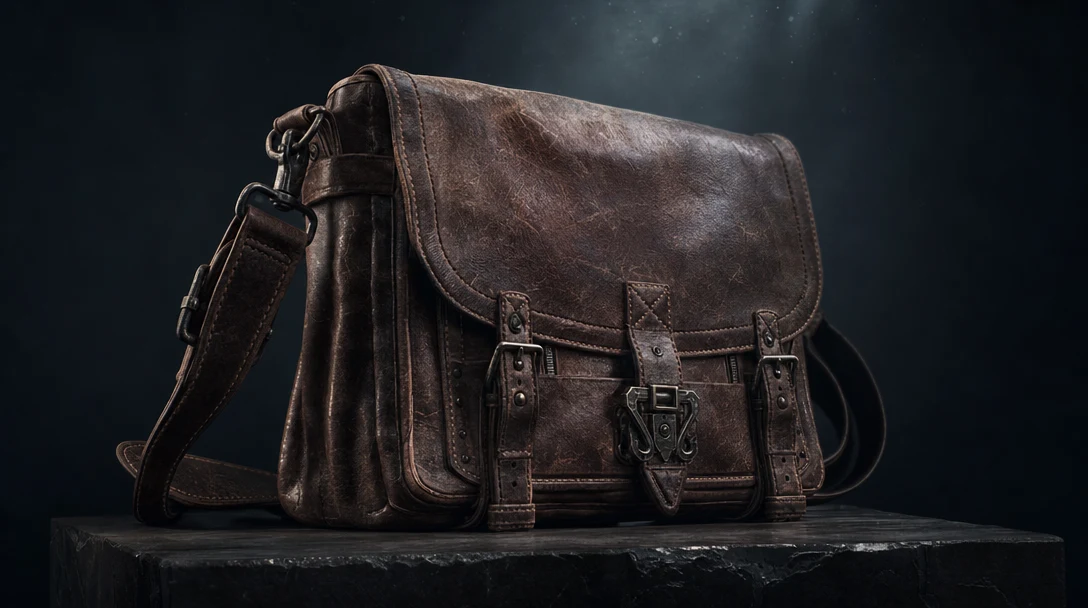
A text prompt is the most ambiguous starting point in 3D. Type "weathered leather messenger bag" and the model still has to invent the buckle shapes, the stitching, the strap length, the wear pattern, and the entire back face you never described. So the tool you want is the one that resolves that ambiguity in your favor and lets you correct it cheaply, not the one with the flashiest first render.
Quick picks: Meshy and Tripo for fast, wide concept exploration from loose prompts. Sloyd when the prompt should drive a predictable, parametric asset — the most genuinely text-native pick here. Rodin (Hyper3D) when your prompt is already specific and the geometry has to survive a modeling package. And Customuse when a prompt has to become a repeatable, team-owned workflow, because it runs Meshy, Tripo, and Hunyuan as nodes inside one graph rather than asking you to bet on a single generator.
In This Guide
The Text-To-3D Problem: Ambiguity, Not Image Fidelity
Image-to-3D has a visual target to honor; the reference pins the silhouette and proportions, and the tool's main job is to extrude the parts you cannot see. Text-to-3D has none of that. Language underspecifies geometry. Every word is a constraint with enormous gaps between the constraints, and the model fills those gaps with a guess.
That changes what "good" means. With a photo reference you can blame the tool when the back is smeared. With a prompt, half the time the back is smeared because you never told it the back existed. So the real differentiators for text-to-3D are not render quality at all — they are:
Prompt obedience. When you specify "low-poly" or "matte plastic," does the result honor it, or quietly hand you a high-poly photoreal mesh anyway?
Gap-filling sanity. The parts you left unspecified — are they plausible defaults, or random noise you now have to fight?
Correctability. When the guess is wrong, can you nudge one part with words, or must you reroll the entire object and lose the parts that were right?
A tool can produce a gorgeous lantern and still be the wrong choice if changing the base means losing the glass. Keep that in mind through the table below: the scores reward control under ambiguity, not the prettiest single output.
The Shared Prompt Brief
This is the part most "best tool" comparisons skip, and it is where text-to-3D testing lives or dies. A vague prompt produces vague results; an *inconsistent* prompt produces an unfair comparison. Before you judge any tool, write one brief and run it through all of them unchanged. Structure it so the model has fewer gaps to invent:
Object — what the thing is, concretely.
Style — realistic, stylized, low-poly, cinematic, toy-like, hard-surface, organic.
Destination — game prop, VFX reference, product visual, web 3D, concept asset. This single word changes the right poly budget and topology.
Materials — metal, wood, fabric, plastic, glass, stone, emissive, and which part is which.
Constraints — low-poly, simple silhouette, modular, symmetrical, readable from distance.
Context — camera angle, scene type, environment, scale.
A worked example to copy:
*"Stylized sci-fi supply crate for a third-person game environment, chunky silhouette, dark metal panels, orange emissive strips, simple materials, readable from medium camera distance, reusable as set dressing."*
Notice what that brief does: it tells the model the destination (game), the poly intent (simple, readable), and the material split (panels vs. emissive strips) — three of the most common gap-filling failures, pre-empted. Run that exact string through every tool, then compare the full asset, not the thumbnail. Rotate it, check the back and underside, look at whether the emissive strips landed on a separate material, count cleanup steps, and try to export. The tool that reaches a usable file fastest wins for that job — and the winner often changes by object type, so retest with a character and an environment piece before you standardize.
How We Scored These Tools
We ran the brief above (plus a character variant and a hard-surface variant) through each tool, inspected the full result rather than the hero angle, and timed the path to a file a real project could open. Each tool is rated 1 to 5 on factors chosen specifically for the text-to-3D problem — prompt fidelity and correctability carry the most weight, because that is what separates a usable text workflow from a slot machine:
Prompt fidelity — does it honor explicit style, material, and poly instructions?
Gap-filling — are the unspecified back, underside, and interior plausible?
Correctability — can you fix one part without rerolling the whole object?
Export readiness — clean FBX, GLB, OBJ, or USD that opens correctly downstream.
State & team review — do prompts, candidates, versions, and notes survive past one session?
We do not score any tool 5 across the board; every option here has a real watch-out, and a tool that generates well but forgets every prompt and version on refresh is marked down, because lost state is a recurring cost, not a one-time inconvenience.
Per-Factor Scores
Because the prompt promised scoring "across factors," here is the actual matrix — not just an aggregate. Read down a column to compare tools on what you care about; the overall is a weighted read, not an average.
Tool | Prompt fidelity | Gap-filling | Correctability | Export | State & review | Overall /5 |
|---|---|---|---|---|---|---|
Meshy | 4.5 | 4.0 | 3.5 | 4.5 | 2.5 | 4.4 |
Tripo | 4.5 | 3.5 | 3.5 | 4.5 | 2.5 | 4.3 |
Rodin (Hyper3D) | 4.0 | 4.5 | 3.5 | 4.5 | 2.5 | 4.2 |
Sloyd | 4.5 | 4.5 | 4.5 | 3.5 | 3.0 | 3.9 |
3D AI Studio | 3.5 | 3.0 | 3.0 | 4.0 | 2.5 | 3.7 |
Customuse | 3.8 | 4.0 | 4.5 | 4.5 | 4.5 | 4.2 |
A note on the Customuse row, in the interest of not gaming the table: its raw single-prompt generation is good but not category-best, which is the 3.8 you see under prompt fidelity. It scores on the same five factors as everyone else — no separate workflow column — and it leads on correctability and state rather than raw generation. A casual user exploring for fun would weight fidelity and speed higher and likely top-rank Meshy or Tripo; a studio shipping weekly would weight correctability, export, and review higher.
Tool-By-Tool Reviews
Meshy
The broad workhorse. Strong text-to-3D and image-to-3D, AI texturing, smart remesh, and animation-adjacent tooling, fast enough to throw twenty concepts at a problem in one sitting. Prompt fidelity is high — it usually honors style and material cues. Where it slips: detail drifts on busy prompts, the back rarely matches the hero angle, and it is single-player, so prompts and versions live in your head or a spreadsheet. A strong default for exploration. If you are weighing it against the field, see Customuse vs Meshy and Meshy alternatives for AI 3D workflows.
Tripo
The versatility pick. It takes text, image, and sketch input and moves between them smoothly, with a fast loop and useful segmentation and texturing steps — handy when a prompt and a rough reference coexist. Prompt fidelity is comparable to Meshy; the watch-out is that quality varies across modes and back-side detail goes soft on complex objects, so inspect the full mesh before committing. For a head-to-head, see Customuse vs Tripo.
Rodin (Hyper3D)
The structure pick. Cleaner geometry, more usable UVs, stronger PBR materials, solid optimization, broad export formats — the best gap-filling here, which is exactly what a specific prompt destined for an engine needs. It is less fun for loose ideation and rewards a prompt that is already precise, but when the asset must hold up under inspection, it is the strongest single generator to test.
Sloyd
The most genuinely text-native tool on this list, and the one that best answers the ambiguity problem head-on. Instead of free-associating from words, its template and parameter system constrains the prompt into predictable, reusable variations with low cleanup on supported object types — so correctability is its standout score. For modular game props, furniture, weapons, and similar families, that predictability beats a more impressive but un-editable freeform mesh. The trade-off is range: narrower and less freeform than Meshy or Tripo, and weaker on anything outside its template families. Compare approaches in Sloyd vs Meshy vs Customuse.
3D AI Studio
A single studio bundling text and image generation, texture tools, and several export formats. Reasonable when convenience across many tasks matters more than topping any one of them, but output is less consistent than the leaders, so it rewards careful candidate selection. Test it when you want variety in one place and can absorb the variance.
Customuse
Not best read as another raw text-to-3D generator — its single-prompt output is good, not always category-best, which is the honest 3.8 in the matrix above. The strength is what happens after the prompt resolves into something close. Customuse is an AI 3D production workspace where the prompt becomes part of a graph: the Node Editor lets you branch variations and rerun individual steps, so when the lantern's base is wrong you re-run that node instead of rerolling the whole object — directly attacking the correctability problem text prompts create. AI agents can assemble those node graphs for you rather than hiding the process in a black-box chat. Real-time multiplayer makes the canvas a shared team space, and Cinema Studio gives the asset a scene, camera, and continuity source of truth. Because it runs providers such as Meshy, Tripo, and Hunyuan as nodes, you orchestrate several generators rather than marrying one. Outputs are not auto-trusted — you still inspect — but the context that made each result survives into the next. Test it when a prompt needs to become a controlled, team-owned AI 3D workflow rather than a one-off file.
How To Choose By Use Case
Use case | What matters most under ambiguity | Strong picks to test |
|---|---|---|
Broad discovery and mood | Speed, variety, loose-prompt range | Meshy, Tripo |
Game props and modular assets | Predictable parametric output, low cleanup, reuse | Sloyd, Meshy, Customuse |
Engine-ready structure | Sane gap-filling, topology, UVs, PBR, clean export | Rodin, Customuse |
VFX and cinematic shots | Scale, camera context, continuity | Customuse, Rodin |
Team production | Surviving state, versions, review, handoff | Customuse |
All-in-one convenience | Many tasks in one tool | 3D AI Studio, Meshy |
For game work the model is only the first step; topology, optimization, and export decide whether it ships — our AI 3D tools for game assets guide goes deeper. For cinematic and VFX work, a beautiful object is far less useful if it cannot be placed into a scene with believable scale and camera framing — see AI 3D tools for VFX. And before any asset enters a pipeline, run it through a production-ready AI 3D asset checklist so a clean preview does not hide a broken mesh.
Testing The Second Prompt, Not Just The First
The first prompt is the easy case; every tool here can produce a decent first object. The text-to-3D problem reappears on the *second* prompt — the moment you say "same crate, but taller and with a hinged lid." A pure generator often treats that as a brand-new request, discards the parts that were already right, and hands you a different object you now have to re-approve. That is the ambiguity tax compounding: each correction is a fresh roll of the dice.
So when you evaluate, deliberately run the change requests, not just the openers. Test whether the tool preserves:
The original prompt intent and the approved references.
The candidates you selected and the material direction you set.
Scene context and the export target.
Rejected versions, so you do not regenerate a path you already ruled out.
Team notes and approvals.
This is the line between a generator and a workspace. A generator gives you an output; a workspace keeps the context that lets the next output build on the last. Run the tenth prompt before you commit — that is where state, or the lack of it, decides whether text-to-3D is a tool or a slot machine.
FAQ
What are text-to-3D tools?
They generate a 3D model from a written prompt: the model reads a description — object, style, materials, intent — and returns a mesh, usually with textures or PBR materials, that you then inspect, edit, and export. Because language underspecifies geometry, the model guesses the parts you did not describe, which is why the comparison above weights prompt fidelity and correctability over first-preview looks.
What is the best free text-to-3D tool?
Meshy, Tripo, and Rodin all offer free credits or a free tier that is enough to test prompt quality before paying. Free tiers usually cap resolution, export formats, or monthly generations, so treat them as a trial, not a production plan. Run the same prompt brief across each one, inspect the full mesh, then decide where the paid value is for your work.
Are text-to-3D tools good for game assets?
For concept assets, props, and early production, yes — but teams still must check topology, optimization, materials, scale, and export compatibility, and generated meshes often need retopology before rigging. Parametric tools like Sloyd cut that cleanup for supported types, and a workflow tool connects generation to the retopology, texturing, and export steps that make an asset game-ready.
What is the biggest weakness of text-to-3D?
Ambiguity. A prompt names an object but rarely defines its hidden sides, exact proportions, material separation, or production requirements, so the model fills the gaps with guesses — and a wrong guess often costs a full reroll. The fix is partly a structured prompt brief and partly choosing tools that let you correct one part of a result without regenerating the whole thing.
How do I choose a text-to-3D tool?
Run one prompt brief across every tool, inspect the full model from all angles, export it, then run a change request to see whether the second prompt keeps the parts that were right. Match the result to your job — solo exploration, game pipeline, VFX scene, or team production — since the winner shifts by task and object type. If assets must move from a prompt into a repeatable, multi-step process, weigh a workspace like Customuse; if you mostly want fast ideas, Meshy or Tripo may be enough.


