How to link your Roblox account to your Customuse account

Why Link Your Accounts?
Linking your Roblox account to Customuse enables key features:
Upload your designs directly to Roblox
Upload designs to your Roblox communities (groups)
Preview your designs in the Customuse Fitting Room experience
Import your Roblox avatar to preview your designs on
And many others!
Prerequisites
Before starting, ensure you have:
A Customuse account
A Roblox account (must be set to age 13+ in settings)
How to Link Your Accounts
You can link your accounts in two ways:
Option 1: Through Customuse Settings
Navigate to your Customuse settings
Click "Link Roblox Account"
Option 2: Through the Editor
Link when you attempt to:
Upload a design to Roblox
Preview a design in Roblox
Account Linking Process
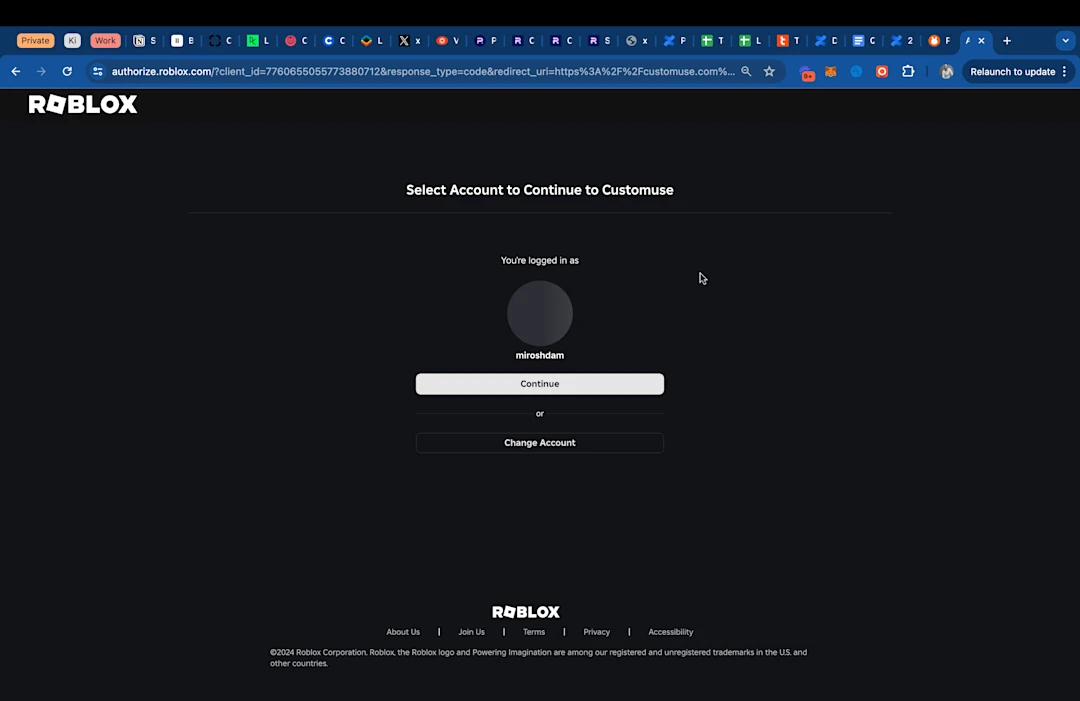
Step 1: Sign in to Roblox
Sign in to the Roblox account you want to link with Customuse.
Step 2: Select Account and Group (CRITICAL)
Important: You MUST select where you want to upload your designs.
If you don't select anything, you'll need to unlink and start over!
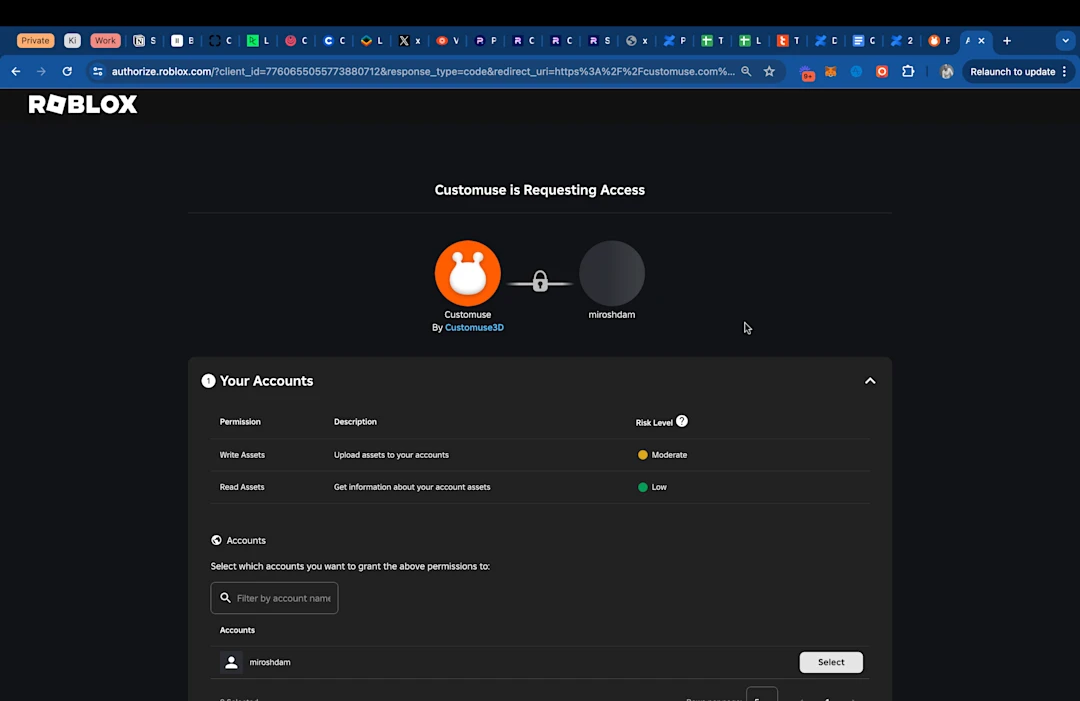
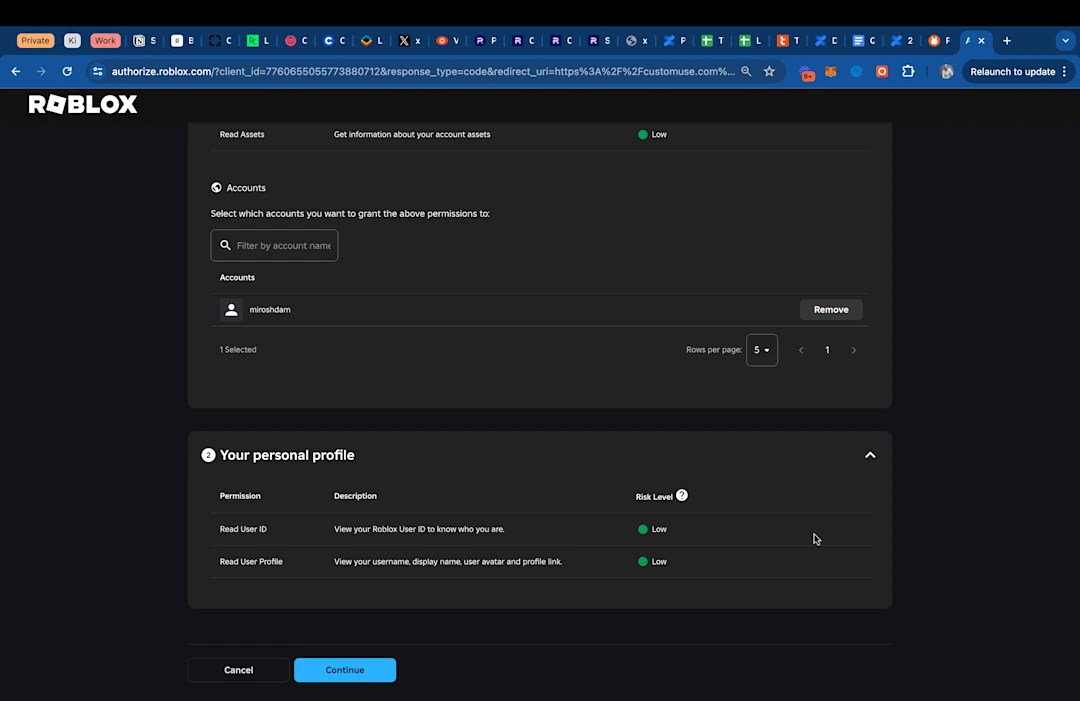
Select your personal Roblox account
For group uploads: Select BOTH your personal account AND the group
You must be the owner or have contributor permissions in the group to upload
Step 3: Confirm Permissions
Review the permissions you're granting to Customuse and confirm.
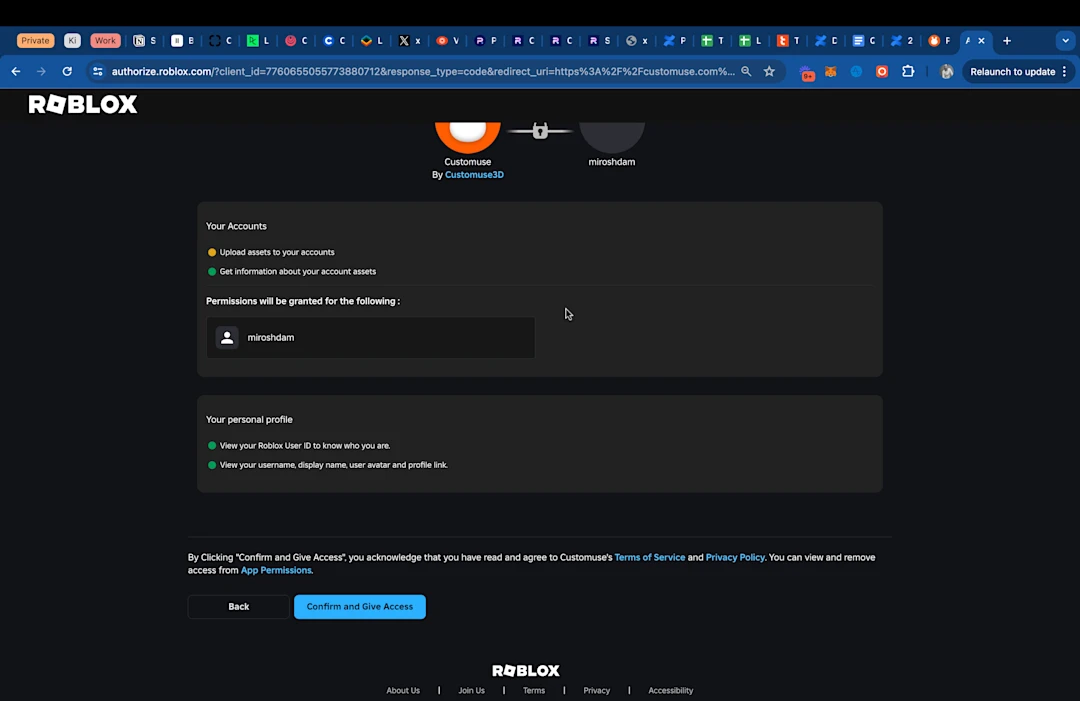
You'll be redirected back to Customuse once complete.
Troubleshooting Common Issues
Issue 1: Can't Complete Linking Process
Most common cause: Forgetting to select an account in Step 2.
Return to the selection screen and ensure you've chosen your account
Issue 2: Underage Account Error
Roblox requires accounts to be set to 13+ years to use external app linking.
Check your age settings in your Roblox account
This limitation is set by Roblox and cannot be bypassed by Customuse
Issue 3: Unable to Link a Roblox Group
To link a group, ensure:
You are the owner or have contributor permissions in the group
You've selected BOTH your personal account AND the group during Step 2
Your role in the group allows uploading design assets