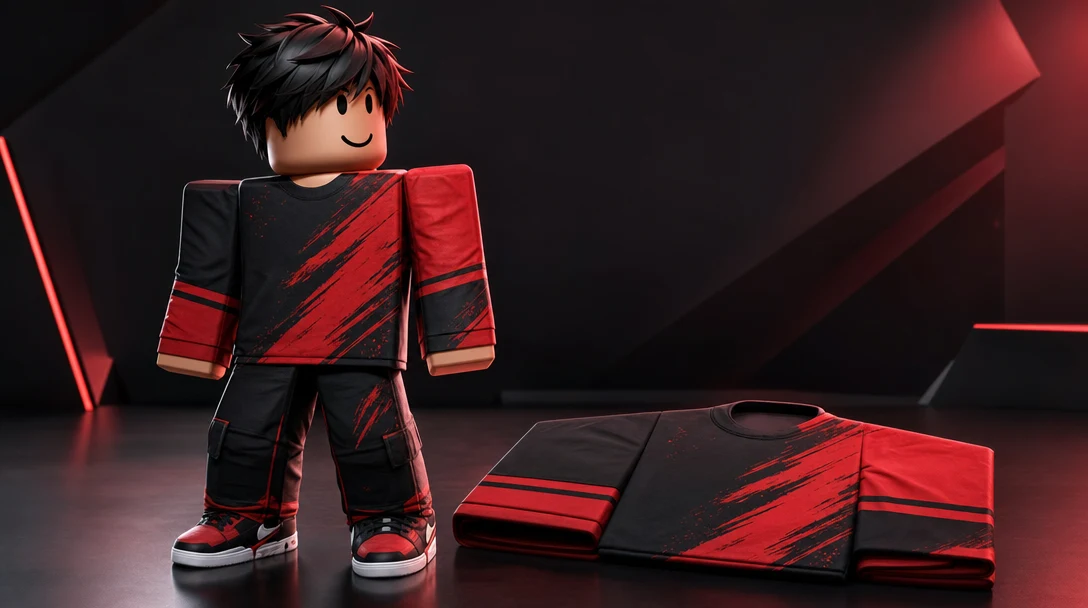
We recently introduced the ability to send Roblox Classic Clothing (shirts and pants) directly into Roblox without leaving the Customuse Editor. This tutorial will help you navigate it. Let's get started!

Before you begin

Please make sure you have:

  1. A Customuse Pro subscription (or a free trial of a Pro subscription), because "upload to Roblox" is a Pro feature. If you want to upload designs for free, please use the manual flow.

  2. At least 10 Robux, because Robux takes 10 Robux for each item you upload. You can win some Robux to get you started in Customuse's Discord server

  3. Verified Roblox account. Roblox only allows verified accounts to upload designs directly into Roblox (via API). You can verify your account in Roblox Settings.

Upload to Roblox

Create a design and customize it to your liking. Press "Upload to Roblox" in the Editor's top right corner when ready. You can find the same button in the "Share" menu. Note that if you don't have a Pro subscription, you will see a payment wall here!
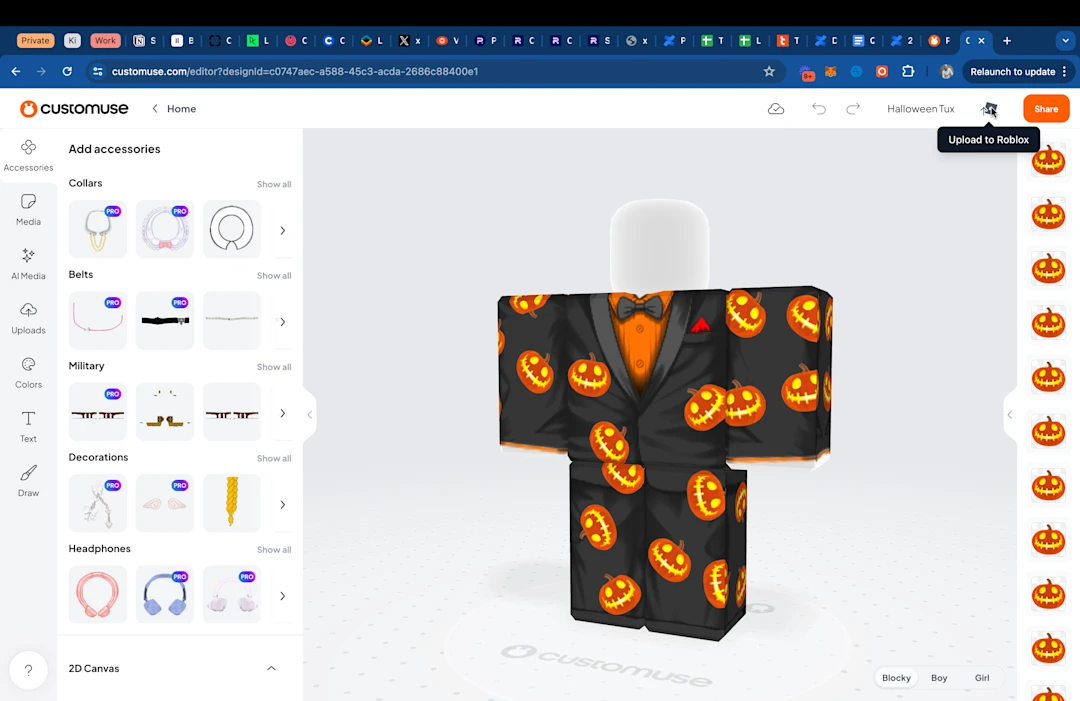
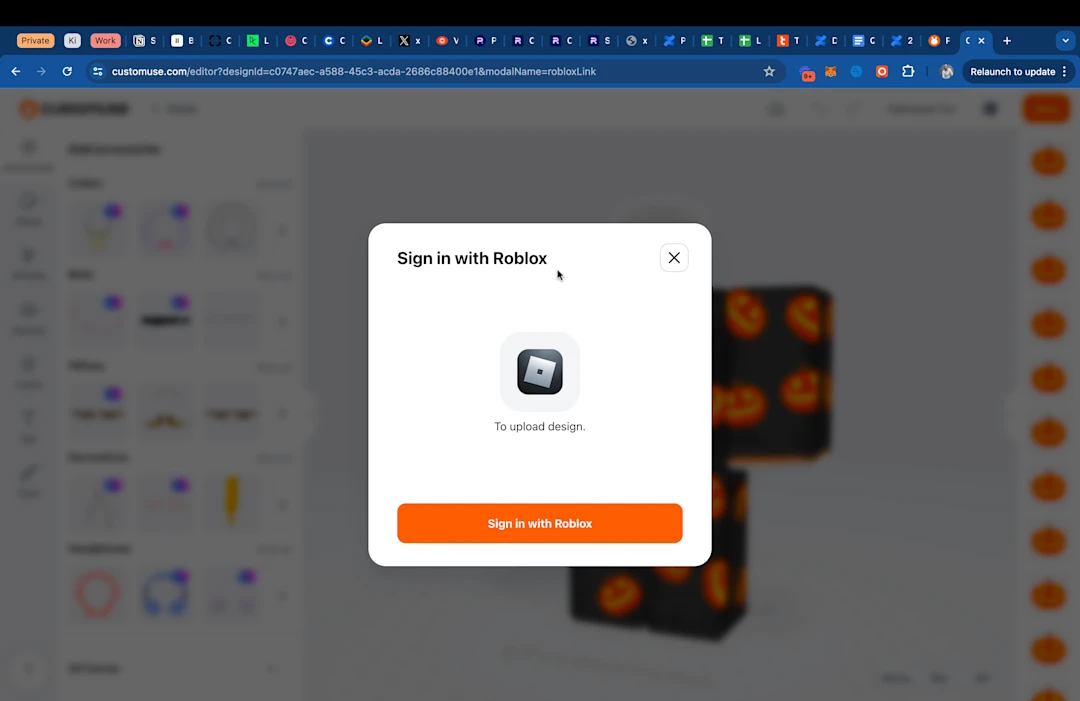
Tutorial image explaining where to find "Upload to Roblox" button in the Customuse EditorScreen that requests that user signs in to Roblox in the Customuse editor

Sign in to the Roblox account that you would like to link. If you plan to upload designs to a Roblox group, you still need to sign in to your account first.
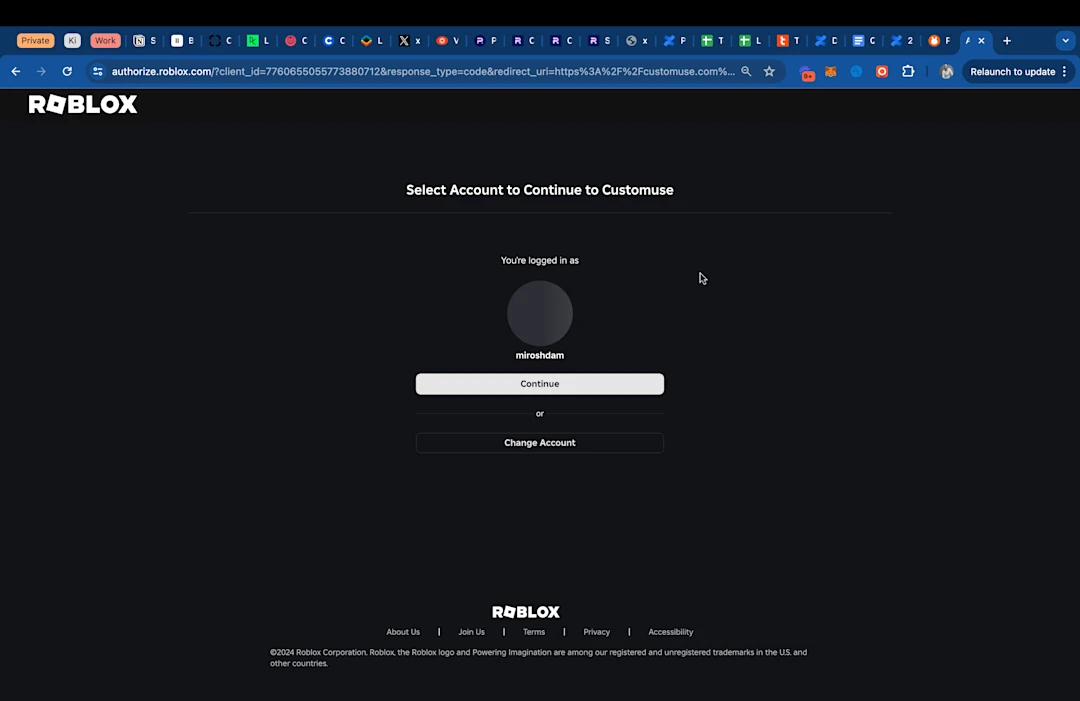
Sign in to your Roblox account and link to Customuse app on Roblox

In the next screen select where you would like to upload your design to. If you don't select anything, you will not be able to upload your design and will have to unlink your Roblox account and link it again!
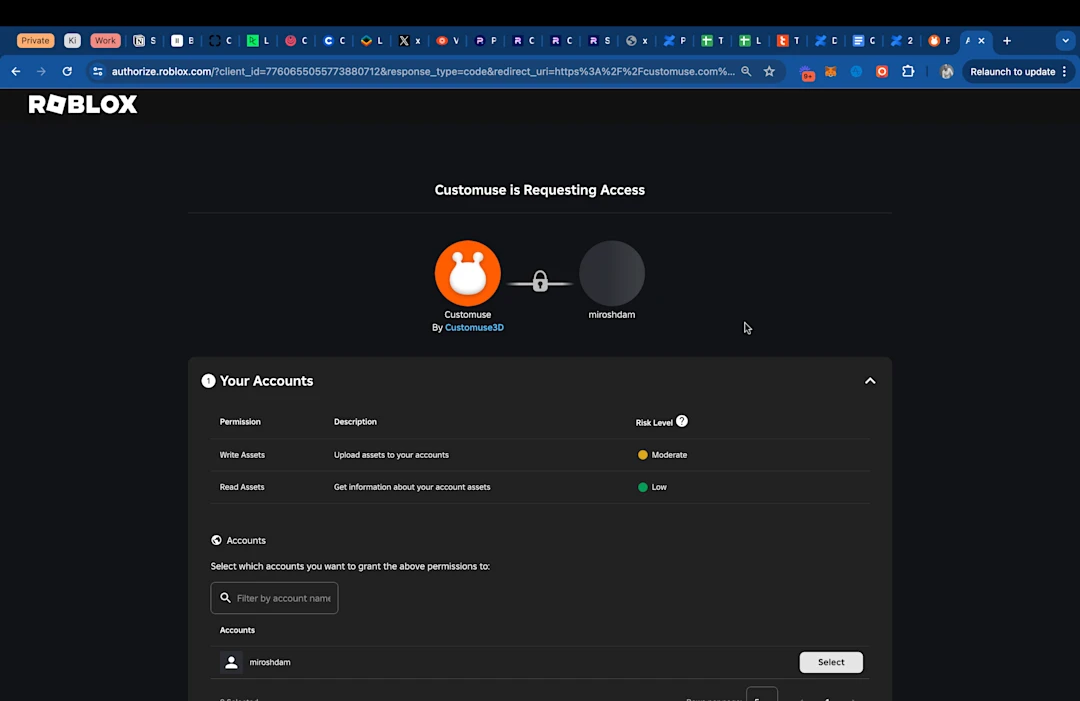
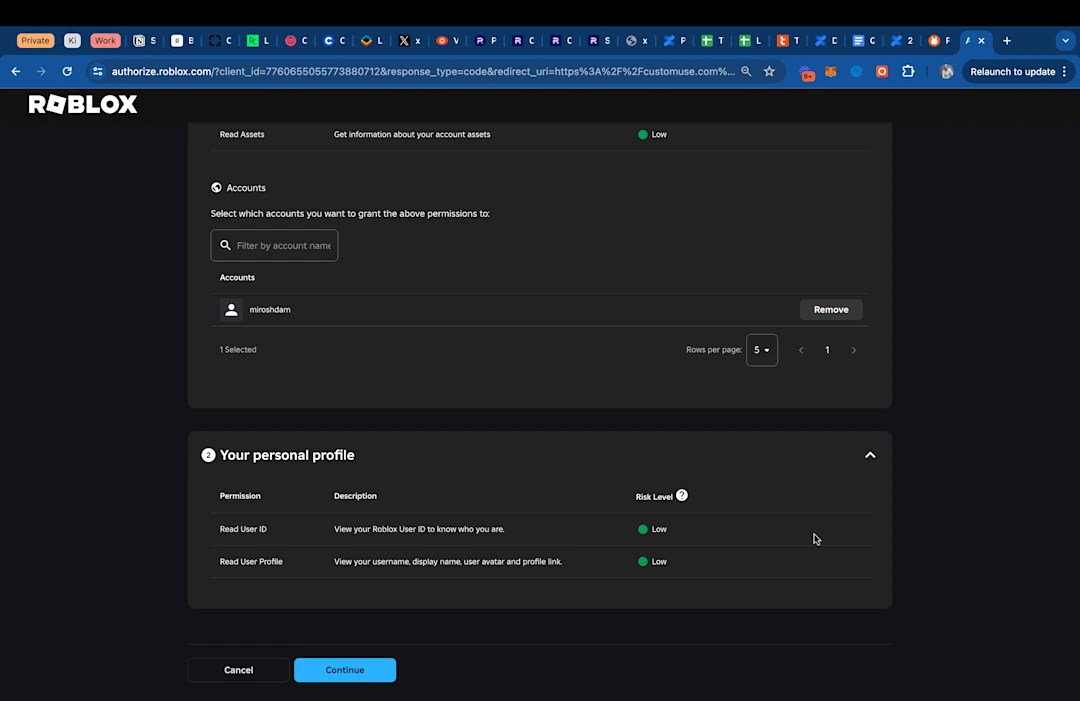
Select account to link to Roblox and upload design asSelect Roblox account to upload design us (selected state)

Check the privileges that you grant the Customuse app on Roblox and confirm linking. You will be redirected back to the Customuse Editor.
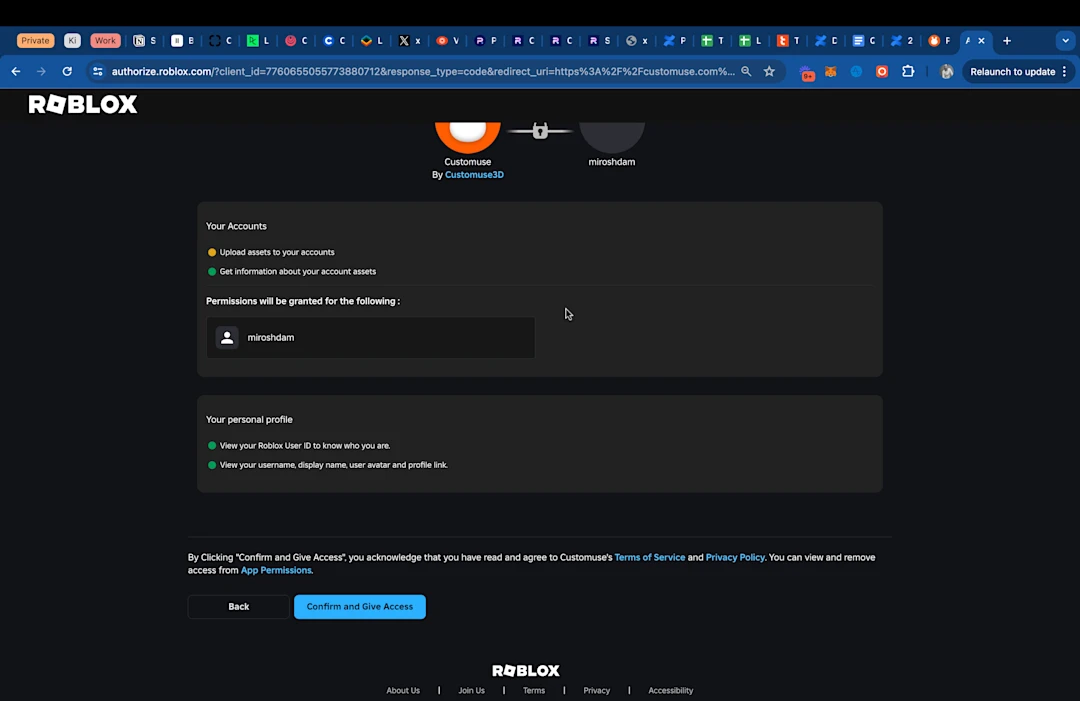
Confirm privileges granted to Customuse on Roblox

Prepare the design for uploading and upload

Start by selecting the element you want to upload. If you remixed a Shirt design or a Pants design, you will only have 1 choice. However, when you remix a Suit design, it actually consists of 2 elements: a Shirt and Pants. Each will have to be uploaded separately
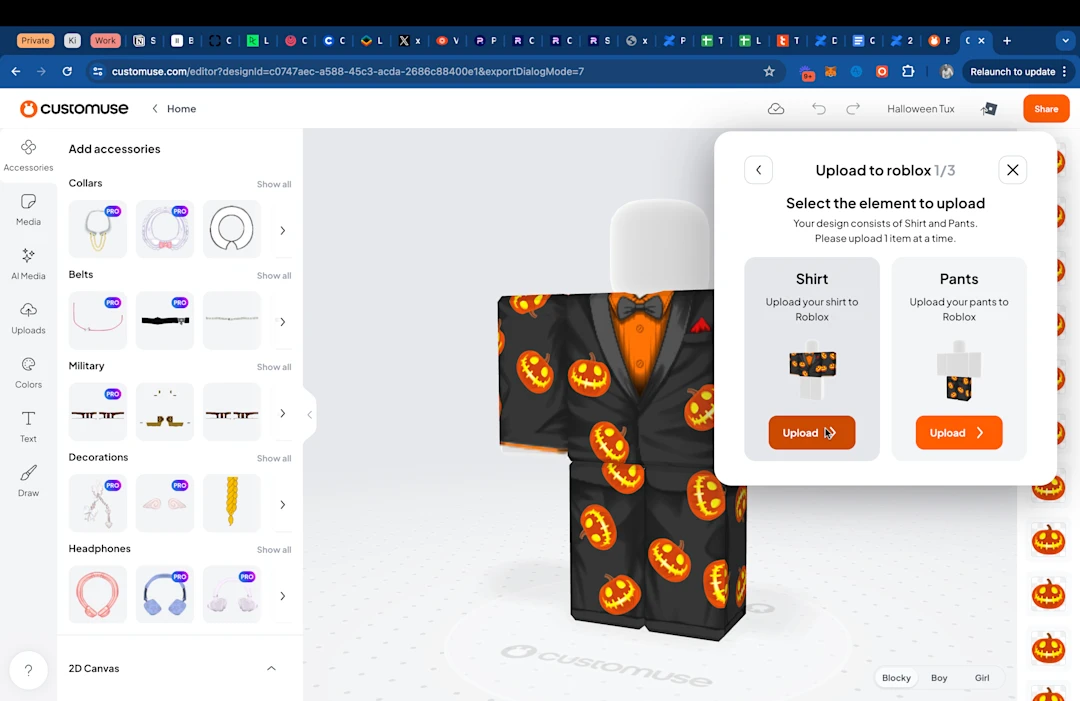
Select design element that you want to upload to Roblox

Enter title and description of the design you want to upload. Description is optional but will help make your design discoverable on Roblox.
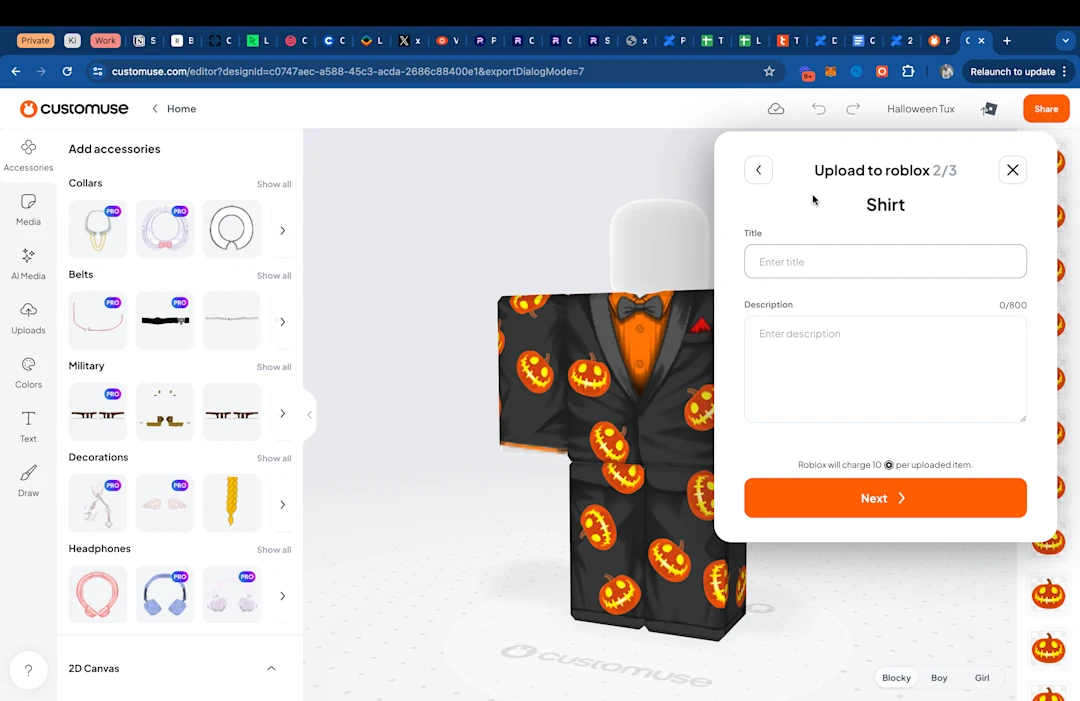
Enter title and description for the design uploaded to Roblox

Review all details and when you are ready press "Upload for 10 Robux". When you press this button, the upload begins and Roblox takes your Robux!
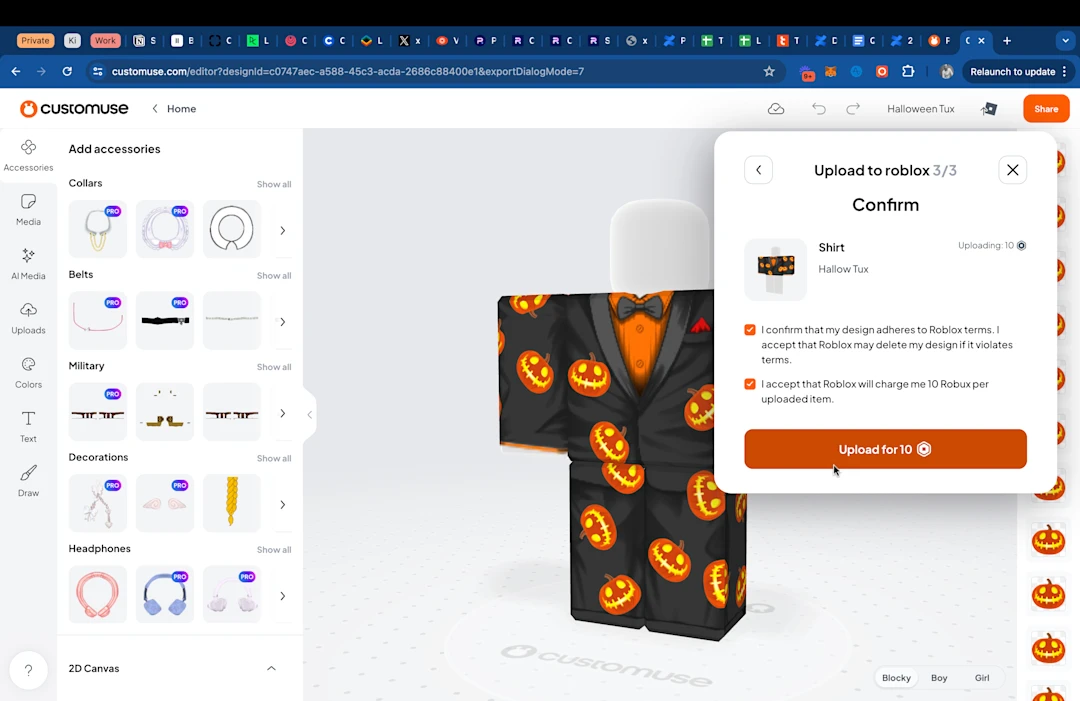
Confirm and upload design to Roblox for 10 Robux

Find the design on Roblox

When the design is uploaded, you will see a confirmation screen. Now let's find the design on Roblox itself!
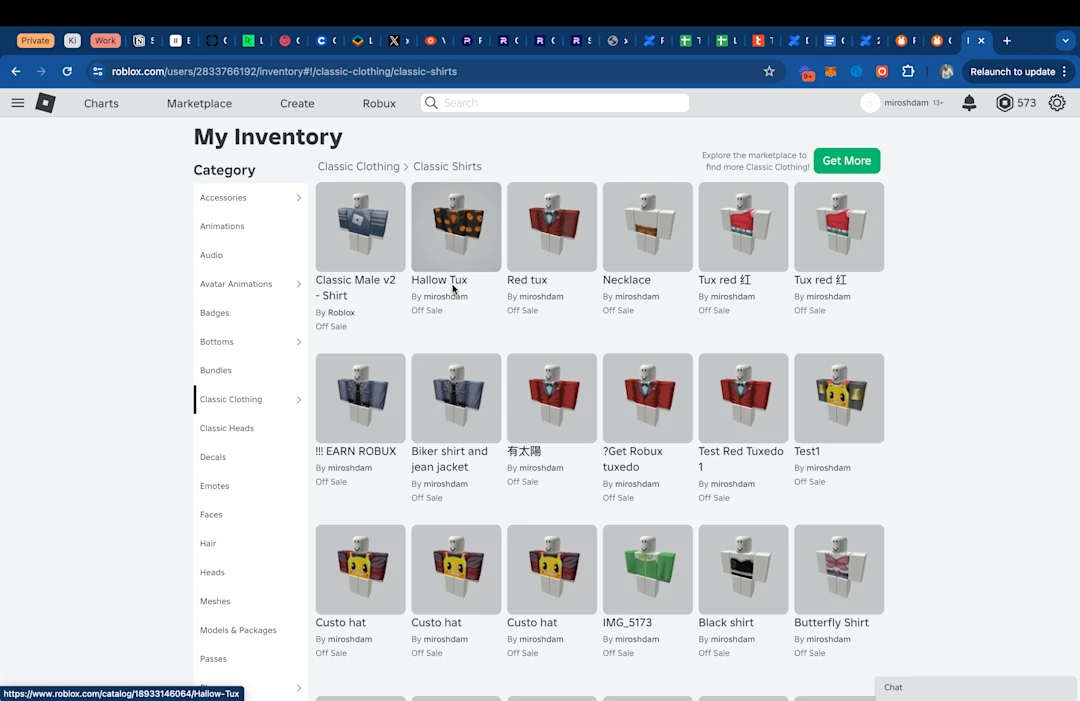
Your uploaded design is in your inventory!

Navigate to Menu > Inventory. You will see your design there! It may take 5-10 minutes for it to be uploaded and to pass moderation. You can click on it and configure it for sale. And now you can make some Robux!



More resources

How to Request a Feature in Customuse

How to Request a Feature in Customuse

How to suggest a new feature or improvement to Customuse, and what makes a request easy to act on.

Contact Customuse: How to Reach the Team

Contact Customuse: How to Reach the Team

The fastest ways to get in touch with Customuse — Discord, email, and our social channels — and which one to use.

Troubleshooting Common Issues in Customuse

Troubleshooting Common Issues in Customuse

Quick fixes for the most common Customuse issues — stuck generations, export problems, sign-in trouble, and credits.

Account, Billing & Subscriptions Help

Account, Billing & Subscriptions Help

Manage your Customuse account, plan, and payments — and find the steps for cancelling, refunds, and account deletion.

How to Report a Bug in Customuse

How to Report a Bug in Customuse

What to include in a bug report and where to send it so the Customuse team can reproduce and fix it quickly.

Customuse vs Meshy: AI 3D Generator vs Workflow Platform

Customuse vs Meshy: AI 3D Generator vs Workflow Platform

A practical comparison of Customuse and Meshy for AI 3D generation, game assets, workflow control, team production, and exports.

AI 3D Node Editor: The Workflow Layer for Modern 3D Creation

AI 3D Node Editor: The Workflow Layer for Modern 3D Creation

How AI 3D node editors turn generation, references, models, textures, agents, and exports into visible workflows teams can control.

AI Agents for 3D Game Art

AI Agents for 3D Game Art

A practical explanation of AI agents for 3D game art, based on Customuse Shorts showing node-based workflows for concept, high-poly generation, retopology, baked normals, and engine handoff.

AI 3D Model Generator: How to Choose One for Real Production

AI 3D Model Generator: How to Choose One for Real Production

A practical guide to AI 3D model generators, what they can do today, and why the best workflow is more than a prompt-to-mesh tool.

AI 3D Asset Generator: From Concept to Production-Ready

AI 3D Asset Generator: From Concept to Production-Ready

A production-focused guide to AI 3D asset generators, from concept speed to topology, texturing, rigging, export, and team workflow.

AI 3D Tools for VFX: Scene Control Beats Prompt Rerolls

AI 3D Tools for VFX: Scene Control Beats Prompt Rerolls

A guide to AI 3D tools for VFX, cinematic workflows, scene control, camera blocking, continuity, and directed AI rendering.

Customuse vs Tripo: Image-to-3D or Full AI 3D Workflow?

Customuse vs Tripo: Image-to-3D or Full AI 3D Workflow?

Compare Customuse and Tripo across image-to-3D, text-to-3D, game assets, workflow control, collaboration, agents, and production handoff.

AI 3D Asset Pipeline: From Prompt to Production-Ready Files

AI 3D Asset Pipeline: From Prompt to Production-Ready Files

An AI 3D asset pipeline turns generation into usable production work. Learn the steps from prompt and reference to cleanup, materials, export, and review.

AI 3D Tools for Game Assets: Concept to Engine-Ready

AI 3D Tools for Game Assets: Concept to Engine-Ready

A production-focused guide to choosing AI 3D tools for game assets, covering concepts, meshes, retopology, PBR textures, rigging, and engine exports.

Image to 3D Model: From Reference to Usable Asset

Image to 3D Model: From Reference to Usable Asset

Learn how image-to-3D tools work, where they fail, and how to turn a reference image into an asset that can move into a real 3D workflow.

AI 3D Workflow Tool: Production Beyond a Generator

AI 3D Workflow Tool: Production Beyond a Generator

A category-defining guide to AI 3D workflow tools and why nodes, agents, collaboration, memory, and exports matter after the first model.

Making Game-Ready 3D Models With AI

Making Game-Ready 3D Models With AI

A practical AI game-asset workflow based on a Mars rover and alien enemy case study, covering concept generation, multi-view 3D, retopology, texturing, Unity handoff, and final inspection.

Best AI 3D Tools in 2026: Generators to Production

Best AI 3D Tools in 2026: Generators to Production

A practical guide to the best AI 3D tools by use case, including model generators, image-to-3D tools, workflow platforms, VFX tools, and game asset pipelines.

Text to 3D Model: From Prompt to Production Workflow

Text to 3D Model: From Prompt to Production Workflow

A guide to text-to-3D model generation, where prompts work well, where they break, and how to turn prompt outputs into usable 3D assets.

AI to 3D Game Character With Skins

AI to 3D Game Character With Skins

A full AI character workflow for games, based on a Customuse tutorial covering part extraction, low-poly generation, UV cleanup, texture variants, Blender assembly, rigging, and Unreal Engine handoff.

Best Text to 3D Tools in 2026: What to Compare

Best Text to 3D Tools in 2026: What to Compare

A practical guide to text-to-3D tools, prompt quality, model inspection, workflow fit, export formats, and production-readiness.

AI 3D Workspace: Why You Need More Than a Prompt

AI 3D Workspace: Why You Need More Than a Prompt

An AI 3D workspace gives creators control over assets, scenes, references, materials, cameras, versions, collaboration, and exports.

Meshy vs Tripo vs Customuse: Which AI 3D Tool Wins?

Meshy vs Tripo vs Customuse: Which AI 3D Tool Wins?

Compare Meshy, Tripo, and Customuse by generation quality, image-to-3D, text-to-3D, workflow control, game assets, VFX use cases, and production handoff.

Best Image to 3D Tools in 2026: How to Choose

Best Image to 3D Tools in 2026: How to Choose

Compare image-to-3D tools by reference quality, mesh usability, material control, scene context, exports, and production workflow.

Best AI 3D Model Generators in 2026: How to Choose

Best AI 3D Model Generators in 2026: How to Choose

A practical guide to choosing an AI 3D model generator for real creative work, from first mesh quality to scene control, exports, and production workflow.

Meshy Alternatives: AI 3D Tools for Workflows & VFX

Meshy Alternatives: AI 3D Tools for Workflows & VFX

Looking for Meshy alternatives? Compare AI 3D tools by workflow fit, image-to-3D, text-to-3D, game asset creation, VFX use cases, and production readiness.

Best AI 3D Tools for Game Developers in 2026

Best AI 3D Tools for Game Developers in 2026

Game developers should compare AI 3D tools by asset quality, engine readiness, optimization, material control, scene context, and export workflow.

AI Agents Come to the Nodes Editor

AI Agents Come to the Nodes Editor

You can now collaborate with AI Agents directly inside the Nodes Editor — chat from a workflow, ask for node edits, and hand off larger tasks with budget controls.

More Reliable 3D Exports & Workflow Previews

More Reliable 3D Exports & Workflow Previews

Dedicated GLB/FBX export menus, transparent-background rendering, and smoother artifact reuse make getting assets out of Customuse more reliable.

Smarter Media History: Every Output Is Its Own Asset

Smarter Media History: Every Output Is Its Own Asset

Generated media is now handled as individual assets — with per-item deletion, dedicated video renditions, and faster history browsing.

Real-Time Workflow Collaboration + Auto Rig

Real-Time Workflow Collaboration + Auto Rig

Faster room joining, clearer presence, one-click workflow duplication, and a new Auto Rig node that makes 3D models animation-ready.

A Streamlined 3D Creation Onboarding

A Streamlined 3D Creation Onboarding

A refreshed homepage and onboarding flow guide new creators toward 3D and media workflows faster, with clearer model descriptions.

How to Upload a Shirt in Roblox: a Step-by-Step Guide

How to Upload a Shirt in Roblox: a Step-by-Step Guide

Bring your Customuse designs to life in Roblox. Our guide explains how to save, publish, and upload your unique outfits to Roblox, making your avatar stand out.

How to upload a 3D Shirt or Accessory to Roblox: a Step-by-Step Guide

How to upload a 3D Shirt or Accessory to Roblox: a Step-by-Step Guide

Discover how to share your Roblox Clothes and Accessories from Customuse and use them for your Roblox Avatar. This guide will walk you through each step from saving your design in Customuse to wearing it on your Roblox Avatar.

How to upload a Hat or Mask to Roblox: a Step-by-Step Guide

How to upload a Hat or Mask to Roblox: a Step-by-Step Guide

Discover how to create Hats and Masks in Customuse for Roblox (Rigid Accessories in Roblox lingvo) and how to upload and use them on your Roblox avatar. In this guide you will go through the process from creating a Hat to wearing it on your Roblox Avatar.

How to link your Roblox account to your Customuse account

How to link your Roblox account to your Customuse account

Link your Roblox account to Customuse to upload and preview designs. Must select an account during linking (most common error). Ensure your Roblox account is set to 13+ years and you have proper permissions for group uploads.

How to Create 3D Assets with Customuse

How to Create 3D Assets with Customuse

Create 3D assets in seconds with Customuse AI - no technical skills needed! Transform ideas into game-ready models instantly. Learn the fastest method here.

How to Easily Create and Upload a Roblox Shirt on Your Phone

How to Easily Create and Upload a Roblox Shirt on Your Phone

Easily create and upload a custom Roblox shirt from your phone using the Customuse app! Remix designs, add accessories, and upload directly to Roblox. Follow this quick guide to design and sell your shirt in just minutes!

Cancel your subscription

Cancel your subscription

Looking to leave Customuse? Learn how to cancel your subscription.

Delete your account

Delete your account

Learn how to delete your account from Customuse

Request a refund

Request a refund

How to request a refund if you have purchased Customuse Pro by mistake

This site uses cookies to improve your experience. By continuing, you accept our Privacy Policy.
Manage