Quick Answer

UV unwrapping is the process of flattening a 3D model's surface onto a 2D plane so that a texture image knows exactly where to land on the mesh. Each vertex gets a 2D coordinate (a "UV"), and those coordinates form the map that materials, normal maps, and lightmaps read. For AI-generated 3D models, UV unwrapping matters because most generators auto-create UVs that look fine in a smooth preview but reveal stretching, overlaps, hidden seams, and uneven texel density the moment you edit the texture, light the asset, or load it in a game engine. A model is only as editable as its UV layout, so reviewing UVs is a required step before any AI mesh becomes a production asset.

What UV Unwrapping Actually Does

A 3D mesh lives in three dimensions, but textures are flat 2D images. UV unwrapping is the bridge between them. "U" and "V" are just the names for the horizontal and vertical axes of texture space (X, Y, and Z were already taken by the model's geometry). When you unwrap a model, you assign every vertex a UV coordinate between 0 and 1, and the renderer uses those coordinates to paint the 2D image onto the 3D surface.

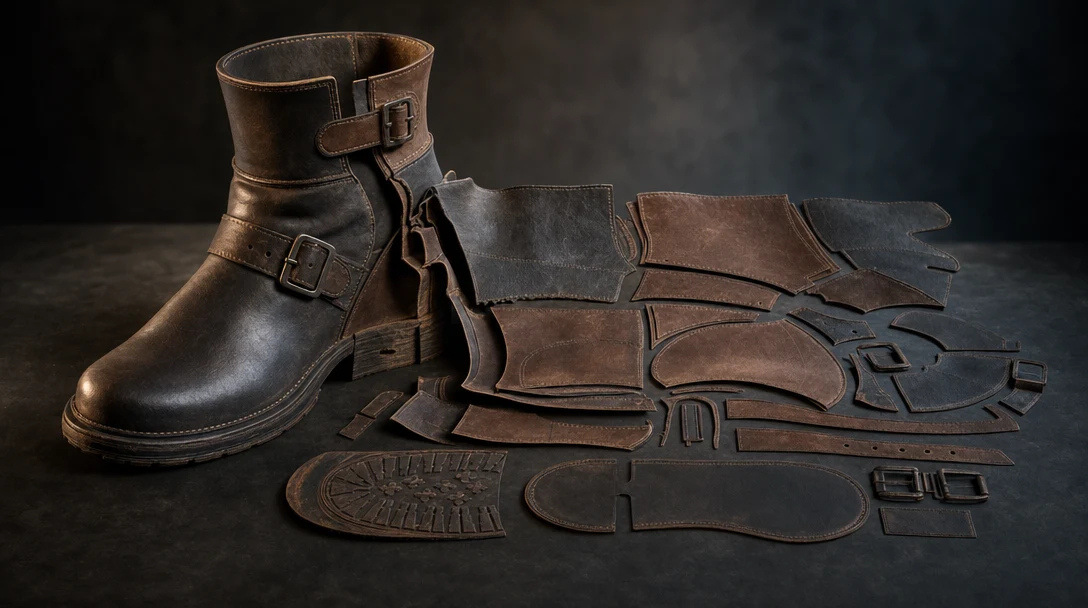
Think of it like peeling an orange and laying the peel flat. Where you cut the peel (the seams) and how evenly the pieces spread out (the texel density) determine whether the printed label on that flattened peel will look correct when wrapped back around the fruit. Cut badly, and the label stretches across one panel and bunches up on another. Cut well, and detail lands exactly where you intended.

UV unwrapping is distinct from texturing. Unwrapping creates the coordinate system; texturing fills it with color, roughness, metalness, and surface detail. If the coordinate system is wrong, no amount of high-resolution texturing will fix the result, because the paint has nowhere clean to go.

How AI Generators Create UVs (and Where It Breaks)

Most AI 3D tools produce UVs automatically as part of generation. There are three common approaches, and each fails differently:

  • Projection-based UVs wrap the texture from a camera angle or a box. They are fast but produce heavy stretching on surfaces that face away from the projection direction.

  • Auto-unwrap algorithms (often based on xatlas or similar packers) cut the mesh into many small islands and pack them tightly. They avoid stretching but create dozens of tiny seams and fragmented material zones that are painful to repaint.

  • Baked texture-to-mesh UVs are tuned to make the generated diffuse texture look good in the preview, not to be edited. They frequently overlap UV islands, which is invisible until you try to bake a normal map or lightmap and detail bleeds between faces.

The core issue is that generation optimizes for the screenshot, not for the next person who has to edit, light, or ship the asset. This is the same pattern seen in raw mesh topology: a generated result can look polished and still be unsuitable for production. UVs are simply the version of that problem you only discover after you apply a real material.

Why UVs Matter More for AI-Generated 3D

When you model by hand, you usually unwrap deliberately for a known use case. With AI generation you inherit whatever the model produced, so the burden shifts to inspection. Clean UVs affect almost everything downstream:

  • Texture placement and editability. Logical UV islands let an artist select a panel, a strap, or a face and repaint it without affecting the rest. Fragmented islands make targeted edits nearly impossible.

  • Normal and PBR maps. Overlapping or low-density UVs cause normal maps to read incorrectly, producing seams, flipped shading, or muddy surface detail.

  • Lightmaps. Game engines bake static lighting into a second UV channel. Overlapping UVs cause light bleeding and dirty shadows that look like rendering bugs.

  • Texel density consistency. If one part of the model gets four times the texture resolution of another, surfaces look mismatched side by side, which is obvious in a game scene full of props.

  • Reuse across scenes. A clean layout means the same asset can be retextured for variants without redoing the mapping every time.

The destination decides how much this matters. A background prop seen from 20 meters tolerates rough UVs. A hero character, a product render, or a VFX shot under a moving camera does not.

UV Quality: What Good and Bad Look Like

UV attribute

Good (production-ready)

Bad (needs cleanup)

How it shows up

Texel density

Even across the model

Some areas blurry, others crisp

Mismatched detail between panels

Seams

Hidden in low-visibility areas

Cutting across faces or focal points

Visible texture breaks on camera

Island count

Logical, grouped by material

Hundreds of tiny fragments

Cannot select or repaint cleanly

Overlaps

None (unless intentional mirroring)

Unintended overlapping islands

Light/normal bleeding when baked

Stretching

Minimal, uniform checker squares

Distorted, smeared checker squares

Textures smear as camera rotates

Layout efficiency

Tight packing, little wasted space

Large empty UV regions

Wasted texture resolution

The fastest way to read this table in practice is the checker test described below. A clean unwrap shows near-square, evenly sized checker tiles everywhere. Distortion in the squares is distortion in your textures.

How to Inspect UVs on an AI-Generated Model

You do not need to be a UV expert to catch the failures that matter. Run this sequence before you commit time to texturing:

  1. Apply a checker texture. Map a high-contrast grid onto the model. Squares should stay roughly square and uniform in size. Stretched or warped squares reveal stretching and uneven density instantly.

  2. Toggle to the UV editor. Look at the island layout. Logical, grouped islands are editable; a confetti of tiny fragments is not.

  3. Check for overlaps. Use your tool's "show overlapping UVs" overlay. Overlaps that are not deliberate mirroring will break normal and lightmap bakes.

  4. Rotate under directional light. Stretching and seam placement are most obvious when light rakes across the surface and the camera moves.

  5. Confirm material zones. Verify that distinct parts (skin vs. cloth, metal vs. wood) map to separate, selectable regions so materials can be assigned correctly.

  6. Test in the target context. Load it where it will actually live, whether that is a game engine, a render scene, or a product viewer, before final approval.

If you plan to take the asset into a DCC tool, pair this with a clean export so the UV channels survive the handoff. The right container matters here; see GLB vs FBX for AI 3D assets for why FBX and GLB both preserve UV sets while some formats flatten them.

When UV Cleanup Is Worth It (and When It Is Not)

UV cleanup costs time, so match the effort to the destination. A simple rule: the more the asset will be reused, animated, lit, edited, or shipped, the more UV quality pays off.

Use case

UV cleanup priority

Why

Hero game character/weapon

High

Seen close up, retextured, lightmapped, reused

Background game prop

Low to medium

Distance hides minor stretching

Product visualization

High

Materials must read as accurate, no smearing

VFX hero asset

High

Camera moves expose every seam and stretch

Concept/blockout reference

Low

Throwaway; texture detail does not matter

Animated/rigged asset

High

Deformation amplifies UV stretching

For low-priority assets, regenerating is often cheaper than repairing. The smartest UV workflow starts before cleanup: compare generated candidates and pick the one with the best starting layout, rather than fixing whatever the first generation produced. This is exactly the kind of judgment a workflow workspace is built to support, where you can branch variations, inspect them side by side, and route only the winner into texture work. See AI 3D model generation after the first mesh for how that "first result is the start, not the finish" mindset applies across the whole pipeline.

Fixing or Regenerating UVs

When cleanup is justified, you generally have three paths:

  • Minor repair. Relax stretched islands, move seams off focal points, and rescale islands for even density. Best when the layout is mostly sound.

  • Full re-unwrap. Discard the generated UVs and unwrap from scratch in Blender, Maya, RizomUV, or similar. Best for hero assets where editability is non-negotiable.

  • Retopo then unwrap. If the underlying mesh is also dense or messy, retopology usually comes first, because clean quad topology with sensible edge loops makes a clean unwrap far easier. Unwrapping a noisy AI mesh just bakes the noise into your UVs.

In a node-based setup, this becomes repeatable: a retopology step feeds an unwrap step feeds a PBR texturing step, and you can rerun any one stage without redoing the rest. Treating UV work as a stage in a connected pipeline, rather than a manual fix every time, is what keeps generated assets moving toward production instead of stalling.

Common UV Mistakes With AI Assets

  • Trusting the preview. A clean-looking diffuse preview hides overlaps and stretching. Always run the checker test.

  • Texturing before checking UVs. Painting on a broken layout wastes hours; you will redo it after the unwrap is fixed.

  • Ignoring the second UV channel. Games need a non-overlapping lightmap UV set separate from the texture set. Generated models rarely include one.

  • Over-cleaning throwaway assets. Perfect UVs on a distant background prop is wasted effort. Match cleanup to visibility.

  • Not recording the decision. Mark whether an asset is approved, pending UV cleanup, or reference-only, so teammates do not re-inspect it from scratch. Saving that state with the asset keeps a multiplayer pipeline from repeating the same review.

FAQ

What is UV unwrapping in 3D?

UV unwrapping is the process of flattening a 3D model's surface into a 2D layout so that a texture image maps onto the mesh correctly. Each vertex receives a 2D coordinate (a UV), and those coordinates tell the renderer where every pixel of the texture should appear on the model.

Do AI-generated 3D models need UV unwrapping?

Most AI generators already produce UVs automatically, so the model usually arrives unwrapped. The question is whether those UVs are good enough. For close-up, lit, animated, or reused assets, the auto-generated layout often needs cleanup or a full re-unwrap because it was optimized for the preview, not for editing.

Why do textures look stretched on AI 3D models?

Stretching happens when the UV mapping does not distribute the surface evenly across texture space, so some areas receive more texture pixels than others. Apply a checker texture and look for distorted, non-square tiles to confirm it. The fix is relaxing the stretched UV islands or re-unwrapping that part of the mesh.

How do I check if UVs are good before texturing?

Apply a high-contrast checker texture and rotate the model under directional light. Even, square checker tiles mean clean UVs; warped or unevenly sized tiles mean stretching or inconsistent texel density. Then open the UV editor to check for overlapping islands and confirm that distinct material zones map to separate, selectable regions.

What is the difference between UV unwrapping and retopology?

Retopology rebuilds the mesh's geometry into clean, animation-friendly polygons, while UV unwrapping defines how textures map onto that geometry. They are separate steps, but order matters: on a messy AI mesh you usually retopologize first, because clean topology makes the unwrap far easier and prevents geometry noise from getting baked into your UV layout.

Do AI 3D models need a second UV channel for games?

Often yes. Game engines bake static lighting into a separate, non-overlapping lightmap UV channel, and most generated models only ship a single texture UV set. If the asset will receive baked lighting, you typically need to generate or author a clean second UV channel to avoid light bleeding and dirty shadows.



More resources

Troubleshooting Common Issues in Customuse

Troubleshooting Common Issues in Customuse

Quick fixes for the most common Customuse issues — stuck generations, export problems, sign-in trouble, and credits.

Contact Customuse: How to Reach the Team

Contact Customuse: How to Reach the Team

The fastest ways to get in touch with Customuse — Discord, email, and our social channels — and which one to use.

How to Report a Bug in Customuse

How to Report a Bug in Customuse

What to include in a bug report and where to send it so the Customuse team can reproduce and fix it quickly.

How to Request a Feature in Customuse

How to Request a Feature in Customuse

How to suggest a new feature or improvement to Customuse, and what makes a request easy to act on.

Account, Billing & Subscriptions Help

Account, Billing & Subscriptions Help

Manage your Customuse account, plan, and payments — and find the steps for cancelling, refunds, and account deletion.

AI 3D Asset Generator: From Concept to Production-Ready

AI 3D Asset Generator: From Concept to Production-Ready

A production-focused guide to AI 3D asset generators, from concept speed to topology, texturing, rigging, export, and team workflow.

AI 3D Model Generator: How to Choose One for Real Production

AI 3D Model Generator: How to Choose One for Real Production

A practical guide to AI 3D model generators, what they can do today, and why the best workflow is more than a prompt-to-mesh tool.

AI 3D Node Editor: The Workflow Layer for Modern 3D Creation

AI 3D Node Editor: The Workflow Layer for Modern 3D Creation

How AI 3D node editors turn generation, references, models, textures, agents, and exports into visible workflows teams can control.

AI Agents for 3D Game Art

AI Agents for 3D Game Art

A practical explanation of AI agents for 3D game art, based on Customuse Shorts showing node-based workflows for concept, high-poly generation, retopology, baked normals, and engine handoff.

AI Texture Generator for 3D Assets: Production Checks

AI Texture Generator for 3D Assets: Production Checks

AI texture generators can speed up 3D asset creation, but production workflows need material control, consistency, UV quality, and lighting tests.

GLB vs FBX for AI 3D Assets: Which Format Should You Export?

GLB vs FBX for AI 3D Assets: Which Format Should You Export?

GLB and FBX serve different 3D workflows. Learn how to choose the right export format for AI-generated assets, games, web 3D, VFX, and review.

Sloyd vs Meshy vs Customuse: Assets, AI, or Workflow?

Sloyd vs Meshy vs Customuse: Assets, AI, or Workflow?

Compare Sloyd, Meshy, and Customuse by structured asset control, AI 3D generation, game asset workflow, scene context, and production handoff.

AI 3D for Cinematic Content: Scenes, Cameras, Shots

AI 3D for Cinematic Content: Scenes, Cameras, Shots

AI 3D can help cinematic creators plan shots, generate assets, build scenes, control cameras, and move from prompts into visual production.

OBJ vs FBX for 3D Workflows: A Guide for AI Assets

OBJ vs FBX for 3D Workflows: A Guide for AI Assets

OBJ and FBX are both common 3D formats, but they solve different workflow problems. Compare them for AI-generated assets, games, VFX, and DCC tools.

AI 3D for Creative Agencies: Concepts to Client Review

AI 3D for Creative Agencies: Concepts to Client Review

AI 3D can help creative agencies create campaign visuals, product scenes, brand worlds, pitch assets, and client-ready prototypes faster.

GLB vs OBJ for Web 3D and AI Assets

GLB vs OBJ for Web 3D and AI Assets

GLB and OBJ are useful for different 3D workflows. Compare them for web 3D, AI-generated assets, review, materials, and production handoff.

Best AI 3D Tools for VFX Artists, Ranked and Scored

Best AI 3D Tools for VFX Artists, Ranked and Scored

VFX artists should compare AI 3D tools by shot control, scene context, asset reuse, camera direction, material quality, and handoff.

What Is a Normal Map? A Practical Guide for AI 3D Assets

What Is a Normal Map? A Practical Guide for AI 3D Assets

Normal maps add surface detail to 3D assets without changing geometry. Learn what they mean for AI-generated models, games, VFX, and materials.

Kaedim Alternatives: AI 3D Production & Pipelines

Kaedim Alternatives: AI 3D Production & Pipelines

Compare Kaedim alternatives by production asset needs, AI generation speed, workflow control, review, exports, and team handoff.

How to Optimize AI 3D Assets for Games

How to Optimize AI 3D Assets for Games

AI 3D assets need optimization before game use. Check polycount, topology, materials, textures, LODs, scale, collision, and engine import.

AI 3D Tools for VFX: Scene Control Beats Prompt Rerolls

AI 3D Tools for VFX: Scene Control Beats Prompt Rerolls

A guide to AI 3D tools for VFX, cinematic workflows, scene control, camera blocking, continuity, and directed AI rendering.

Customuse vs Tripo: Image-to-3D or Full AI 3D Workflow?

Customuse vs Tripo: Image-to-3D or Full AI 3D Workflow?

Compare Customuse and Tripo across image-to-3D, text-to-3D, game assets, workflow control, collaboration, agents, and production handoff.

AI 3D Asset Pipeline: From Prompt to Production-Ready Files

AI 3D Asset Pipeline: From Prompt to Production-Ready Files

An AI 3D asset pipeline turns generation into usable production work. Learn the steps from prompt and reference to cleanup, materials, export, and review.

What Is 3D Model Rigging? A Guide for AI Assets

What Is 3D Model Rigging? A Guide for AI Assets

3D model rigging creates the controls that let a model move. Learn what rigging means for AI-generated assets, games, VFX, and animation.

AI 3D Tools for Game Assets: Concept to Engine-Ready

AI 3D Tools for Game Assets: Concept to Engine-Ready

A production-focused guide to choosing AI 3D tools for game assets, covering concepts, meshes, retopology, PBR textures, rigging, and engine exports.

How to Prepare AI 3D Models for Animation

How to Prepare AI 3D Models for Animation

AI-generated 3D models often need cleanup before animation. Check topology, rigging needs, scale, materials, pivots, and export path.

AI 3D to Blender Workflow: Model to Editable Asset

AI 3D to Blender Workflow: Model to Editable Asset

A practical AI 3D to Blender workflow for inspecting generated models, cleaning geometry, checking materials, and preparing assets for production.

How to Export AI 3D Assets for Blender: A Checklist

How to Export AI 3D Assets for Blender: A Checklist

Exporting AI 3D assets for Blender requires checks for format, geometry, scale, materials, textures, normals, cleanup, and scene context.

Image to 3D Model: From Reference to Usable Asset

Image to 3D Model: From Reference to Usable Asset

Learn how image-to-3D tools work, where they fail, and how to turn a reference image into an asset that can move into a real 3D workflow.

SVG to 3D Model: Turn Vector Art Into Usable 3D

SVG to 3D Model: Turn Vector Art Into Usable 3D

SVG-to-3D workflows can turn logos and vector shapes into 3D assets, but production needs depth, materials, bevels, scene context, and export checks.

What Are LODs in 3D Game Assets? A Practical Guide

What Are LODs in 3D Game Assets? A Practical Guide

LODs help game engines render 3D assets efficiently at different distances. Learn what LODs mean for AI-generated game assets.

3D AI Studio Alternatives: Multi-Model AI 3D Tools

3D AI Studio Alternatives: Multi-Model AI 3D Tools

Compare 3D AI Studio alternatives by image-to-3D, text-to-3D, AI texture generation, multi-model testing, scene context, and workflow fit.

Production-Ready AI 3D Asset Checklist

Production-Ready AI 3D Asset Checklist

A practical checklist for deciding whether an AI-generated 3D asset is ready for games, VFX, product visualization, ecommerce, or studio production.

CSM AI Alternatives for 3D Model Generation

CSM AI Alternatives for 3D Model Generation

Compare CSM AI alternatives by image-to-3D, text-to-3D, production readiness, game asset workflow, VFX use cases, and scene control.

What Is Retopology? Cleaner Meshes for AI 3D Models

What Is Retopology? Cleaner Meshes for AI 3D Models

Retopology rebuilds a 3D model with cleaner geometry. Learn why it matters for AI-generated assets, games, VFX, animation, and export.

AI 3D Workflow Tool: Production Beyond a Generator

AI 3D Workflow Tool: Production Beyond a Generator

A category-defining guide to AI 3D workflow tools and why nodes, agents, collaboration, memory, and exports matter after the first model.

World Models Need 3D Workflows

World Models Need 3D Workflows

World models can generate spatial possibility, but creators and teams need workflows for assets, scenes, materials, cameras, review, and export.

Making Game-Ready 3D Models With AI

Making Game-Ready 3D Models With AI

A practical AI game-asset workflow based on a Mars rover and alien enemy case study, covering concept generation, multi-view 3D, retopology, texturing, Unity handoff, and final inspection.

Best AI 3D Tools in 2026: Generators to Production

Best AI 3D Tools in 2026: Generators to Production

A practical guide to the best AI 3D tools by use case, including model generators, image-to-3D tools, workflow platforms, VFX tools, and game asset pipelines.

Text to STL vs Text to 3D Model: Prompts to Print

Text to STL vs Text to 3D Model: Prompts to Print

Text-to-STL and text-to-3D model workflows are not the same. Learn when to target 3D printing versus game, VFX, and scene workflows.

Text to 3D Model: From Prompt to Production Workflow

Text to 3D Model: From Prompt to Production Workflow

A guide to text-to-3D model generation, where prompts work well, where they break, and how to turn prompt outputs into usable 3D assets.

AI 3D for Indie Game Developers: Fewer Cleanup Surprises

AI 3D for Indie Game Developers: Fewer Cleanup Surprises

Indie game developers can use AI 3D for props, placeholders, style exploration, scene dressing, and workflow acceleration if they control cleanup.

AI to 3D Game Character With Skins

AI to 3D Game Character With Skins

A full AI character workflow for games, based on a Customuse tutorial covering part extraction, low-poly generation, UV cleanup, texture variants, Blender assembly, rigging, and Unreal Engine handoff.

Image to STL vs Image to 3D Model: Which to Use?

Image to STL vs Image to 3D Model: Which to Use?

Image-to-STL and image-to-3D model workflows serve different goals. Learn which one fits 3D printing, games, VFX, product visuals, and creative work.

AI 3D for Studios: From Generation to Production

AI 3D for Studios: From Generation to Production

AI 3D can help studios move faster when it supports assets, scenes, review, repeatable workflows, exports, and collaboration rather than one-off outputs.

Sloyd Alternatives: AI 3D Tools for Game Assets

Sloyd Alternatives: AI 3D Tools for Game Assets

Compare Sloyd alternatives by procedural control, image-to-3D quality, game asset fit, workflow support, exports, and production handoff.

What Are PBR Materials? A Practical Guide for AI 3D Assets

What Are PBR Materials? A Practical Guide for AI 3D Assets

PBR materials help 3D assets respond consistently to light. Learn what PBR means for AI-generated models, games, VFX, and product visuals.

Customuse vs Meshy: AI 3D Generator vs Workflow Platform

Customuse vs Meshy: AI 3D Generator vs Workflow Platform

A practical comparison of Customuse and Meshy for AI 3D generation, game assets, workflow control, team production, and exports.

AI 3D for Product Visualization: Model to Visual System

AI 3D for Product Visualization: Model to Visual System

AI 3D can help product teams create scenes, materials, environments, variations, and campaign-ready visuals faster when the workflow stays controllable.

AI 3D Workflow: How Teams Move From Prompt to Production

AI 3D Workflow: How Teams Move From Prompt to Production

AI 3D workflows help creators move from prompts and references into usable assets, scenes, exports, and production handoff.

Best AI 3D Model Generators in 2026: How to Choose

Best AI 3D Model Generators in 2026: How to Choose

A practical guide to choosing an AI 3D model generator for real creative work, from first mesh quality to scene control, exports, and production workflow.

Export AI 3D Assets for Unreal: Generation to Import

Export AI 3D Assets for Unreal: Generation to Import

Prepare AI 3D assets for Unreal Engine with checks for mesh quality, scale, materials, texture maps, import behavior, scene context, and cleanup.

AI 3D for VFX Artists: Scenes, Assets, and Shot Control

AI 3D for VFX Artists: Scenes, Assets, and Shot Control

AI 3D can help VFX artists with assets, scene setup, shot planning, references, and spatial control, but prompts alone are not enough.

Best AI 3D Tools for Game Developers in 2026

Best AI 3D Tools for Game Developers in 2026

Game developers should compare AI 3D tools by asset quality, engine readiness, optimization, material control, scene context, and export workflow.

Tripo Alternatives: Best AI 3D Tools for 2026

Tripo Alternatives: Best AI 3D Tools for 2026

Compare Tripo alternatives by image-to-3D quality, text-to-3D, workflow control, game asset fit, VFX use cases, and production handoff.

Export AI 3D Assets for Unity: A Handoff Checklist

Export AI 3D Assets for Unity: A Handoff Checklist

Exporting AI 3D assets for Unity requires checks for format, scale, pivot, materials, textures, optimization, cleanup, and scene context.

Meshy vs Tripo vs Customuse: Which AI 3D Tool Wins?

Meshy vs Tripo vs Customuse: Which AI 3D Tool Wins?

Compare Meshy, Tripo, and Customuse by generation quality, image-to-3D, text-to-3D, workflow control, game assets, VFX use cases, and production handoff.

Best Image to 3D Tools in 2026: How to Choose

Best Image to 3D Tools in 2026: How to Choose

Compare image-to-3D tools by reference quality, mesh usability, material control, scene context, exports, and production workflow.

Text to 3D Model: How to Turn a Prompt Into a Usable Asset

Text to 3D Model: How to Turn a Prompt Into a Usable Asset

Text-to-3D tools can move fast, but prompts need inspection, refinement, scene context, and export checks before the model is useful.

Generate Game-Ready Props with AI, No Cleanup Debt

Generate Game-Ready Props with AI, No Cleanup Debt

Learn a practical workflow for generating AI game props, inspecting them, placing them in context, and preparing them for engine handoff.

AI 3D Workspace: Why You Need More Than a Prompt

AI 3D Workspace: Why You Need More Than a Prompt

An AI 3D workspace gives creators control over assets, scenes, references, materials, cameras, versions, collaboration, and exports.

Production-Ready AI 3D Assets: For What, at What Cost

Production-Ready AI 3D Assets: For What, at What Cost

"Production-ready" is not a fixed label — it is ready for a specific destination and stage. How to triage AI 3D assets and decide when readiness pays.

AI VFX Tools: Where 3D Fits Into the New Creative Stack

AI VFX Tools: Where 3D Fits Into the New Creative Stack

AI VFX tools are changing how creators think about shots, assets, and production. Learn why 3D scenes and workflows matter as much as generation.

AI for VFX: Why Scenes Matter More Than Prompts

AI for VFX: Why Scenes Matter More Than Prompts

Prompts are useful for AI VFX, but scenes give creators more control over camera, scale, materials, composition, and continuity.

Meshy Alternatives: AI 3D Tools for Workflows & VFX

Meshy Alternatives: AI 3D Tools for Workflows & VFX

Looking for Meshy alternatives? Compare AI 3D tools by workflow fit, image-to-3D, text-to-3D, game asset creation, VFX use cases, and production readiness.

Image to 3D Model: Turn a Reference Into a Usable Asset

Image to 3D Model: Turn a Reference Into a Usable Asset

Turning an image into a 3D model is powerful, but production workflows need more than a good preview. Here is what to check before using the asset.

AI Scene Generation: From Single Assets to Worlds

AI Scene Generation: From Single Assets to Worlds

AI scene generation is about more than producing one object. Learn how assets, layout, camera, materials, and workflow create useful 3D scenes.

Best Text to 3D Tools in 2026: What to Compare

Best Text to 3D Tools in 2026: What to Compare

A practical guide to text-to-3D tools, prompt quality, model inspection, workflow fit, export formats, and production-readiness.

AI 3D Model Generator: What Matters After the First Mesh

AI 3D Model Generator: What Matters After the First Mesh

AI 3D generation is useful, but the first mesh is only the beginning. Learn what makes an AI-generated model usable in real creative workflows.

AI Agents Come to the Nodes Editor

AI Agents Come to the Nodes Editor

You can now collaborate with AI Agents directly inside the Nodes Editor — chat from a workflow, ask for node edits, and hand off larger tasks with budget controls.

More Reliable 3D Exports & Workflow Previews

More Reliable 3D Exports & Workflow Previews

Dedicated GLB/FBX export menus, transparent-background rendering, and smoother artifact reuse make getting assets out of Customuse more reliable.

Smarter Media History: Every Output Is Its Own Asset

Smarter Media History: Every Output Is Its Own Asset

Generated media is now handled as individual assets — with per-item deletion, dedicated video renditions, and faster history browsing.

Real-Time Workflow Collaboration + Auto Rig

Real-Time Workflow Collaboration + Auto Rig

Faster room joining, clearer presence, one-click workflow duplication, and a new Auto Rig node that makes 3D models animation-ready.

A Streamlined 3D Creation Onboarding

A Streamlined 3D Creation Onboarding

A refreshed homepage and onboarding flow guide new creators toward 3D and media workflows faster, with clearer model descriptions.

How to upload Roblox Classic Clothing directly into Roblox from Customuse

How to upload Roblox Classic Clothing directly into Roblox from Customuse

Send Roblox Classic Clothing directly into Roblox without leaving the Customuse Editor. This tutorial will help you navigate it. Let's get started!

How to Upload a Shirt in Roblox: a Step-by-Step Guide

How to Upload a Shirt in Roblox: a Step-by-Step Guide

Bring your Customuse designs to life in Roblox. Our guide explains how to save, publish, and upload your unique outfits to Roblox, making your avatar stand out.

How to upload a 3D Shirt or Accessory to Roblox: a Step-by-Step Guide

How to upload a 3D Shirt or Accessory to Roblox: a Step-by-Step Guide

Discover how to share your Roblox Clothes and Accessories from Customuse and use them for your Roblox Avatar. This guide will walk you through each step from saving your design in Customuse to wearing it on your Roblox Avatar.

How to upload a Hat or Mask to Roblox: a Step-by-Step Guide

How to upload a Hat or Mask to Roblox: a Step-by-Step Guide

Discover how to create Hats and Masks in Customuse for Roblox (Rigid Accessories in Roblox lingvo) and how to upload and use them on your Roblox avatar. In this guide you will go through the process from creating a Hat to wearing it on your Roblox Avatar.

How to link your Roblox account to your Customuse account

How to link your Roblox account to your Customuse account

Link your Roblox account to Customuse to upload and preview designs. Must select an account during linking (most common error). Ensure your Roblox account is set to 13+ years and you have proper permissions for group uploads.

How to Create 3D Assets with Customuse

How to Create 3D Assets with Customuse

Create 3D assets in seconds with Customuse AI - no technical skills needed! Transform ideas into game-ready models instantly. Learn the fastest method here.

How to Easily Create and Upload a Roblox Shirt on Your Phone

How to Easily Create and Upload a Roblox Shirt on Your Phone

Easily create and upload a custom Roblox shirt from your phone using the Customuse app! Remix designs, add accessories, and upload directly to Roblox. Follow this quick guide to design and sell your shirt in just minutes!

Cancel your subscription

Cancel your subscription

Looking to leave Customuse? Learn how to cancel your subscription.

Request a refund

Request a refund

How to request a refund if you have purchased Customuse Pro by mistake

Delete your account

Delete your account

Learn how to delete your account from Customuse

This site uses cookies to improve your experience. By continuing, you accept our Privacy Policy.
Manage