
Quick Answer
Image-to-3D converts a reference photo or concept art into a 3D mesh by reconstructing the one angle the camera saw and inventing everything it did not. A typical photo shows roughly one face of an object and hides the other five sides, the underside, true scale, and material logic, so the generator fills the gap from learned priors. The result is therefore half measurement, half guess. Inspect the guessed half before you trust the mesh, and judge the asset by whether it survives export and engine import, not by how the front looks in a single preview.
What makes this path distinct from text-to-3D is that it inherits a ground truth. A prompt invents from nothing, so there is nothing to betray; a reference image is dense with checkable evidence (silhouette, proportion, color, surface detail), which makes image-to-3D the most controllable AI 3D path and also the easiest to catch lying. The flat image just cannot say how the back curves, where one part ends and another begins, what is metal versus painted plastic, or how big the object is. Closing that specific gap, between what the photo proved and what it left blank, is the real work that separates a screenshot-perfect preview from an asset a game, store, or shot can use.
In This Guide
What Image to 3D Actually Does
It helps to understand what the model is doing, because that explains where it fails. An image-to-3D system takes one or more 2D images and predicts a 3D representation: a mesh of vertices, edges, and faces, usually wrapped in a generated texture. To do that, it has to solve two problems at once.
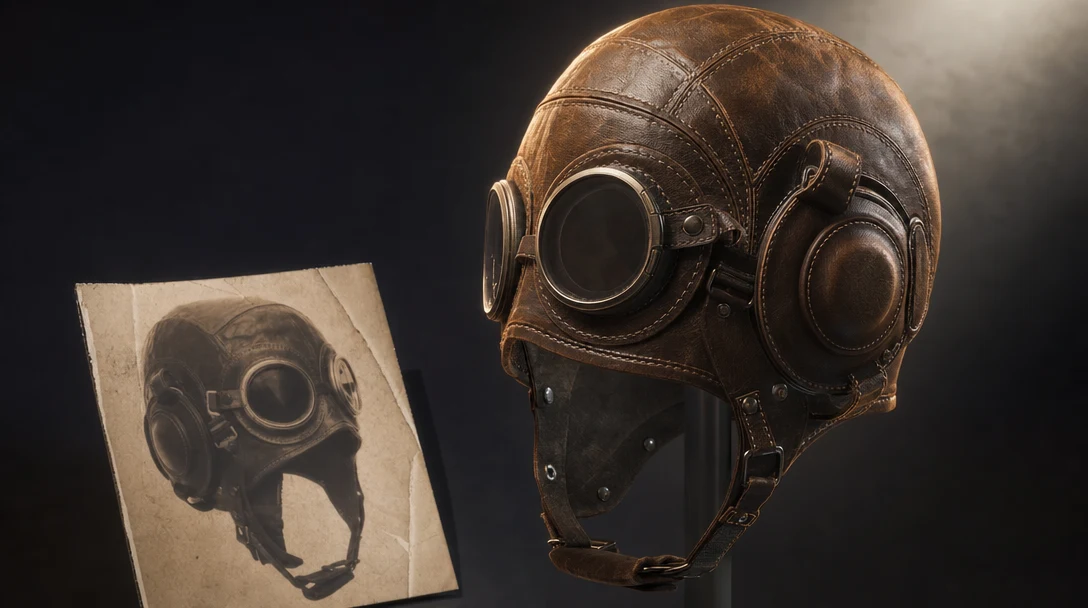
The first is reconstruction. The visible front of a sneaker, helmet, or chair gives the model strong evidence about silhouette, proportion, and surface detail. Modern systems use that evidence directly and tend to be accurate on the side that faces the camera.
The second problem is hallucination, in the neutral technical sense: the model has to invent everything the image does not show. The back of the helmet, the underside of the chair, the inside of a bag, and the geometry behind an occluding arm are all guessed from learned priors about what objects like this usually look like. This is why an image-to-3D result can look flawless from the original camera angle and fall apart when you orbit around it.
Two technical details matter for everything downstream. First, the generated mesh is often dense, triangulated, and topologically messy, because the model optimizes for matching the image, not for clean edge flow an artist or engine would want. Second, the texture is frequently baked: lighting, shadows, and highlights from the reference photo get painted into the color map, so the object carries its original lighting into a new scene. Both are fixable, but only if your process expects them. A tool that hands you a single mesh and stops leaves that work entirely to you.
The Distinct Jobs Image to 3D Is Hired For
"Image to 3D" sounds like one task, but creators reach for it to do several different jobs, and the right tool and settings change with the job.
Ideation and concept exploration. Turn a moodboard or a single concept image into a rough 3D form to evaluate volume and proportion. Speed matters; topology does not. A messy, dense mesh is fine here.
Photogrammetry-style capture. Reconstruct a real object from several real photographs you took. Multi-view accuracy matters most, and you usually want the model to invent as little as possible.
Game-ready asset creation. Produce a prop, weapon, or environment piece that has to import into Unity, Unreal, or Roblox with a sane polycount, clean material slots, and correct scale.
VFX and cinematic props. Generate an object that has to sit in a directed scene with consistent lighting, camera moves, and continuity across shots.
Product and ecommerce anchoring. Lock a real product as a 3D ground truth so you can render it across angles, colorways, and environments without it visually drifting.
3D printing. Convert a reference into a watertight, manifold solid suitable for slicing. This is closer to image to STL than image to 3D model, and the acceptance criteria are different (no texture, but strict geometry rules).
Naming the job first is the single most useful habit, because it tells you which failure modes you can ignore and which ones will sink the asset.
When Image to 3D Works Best
Image-to-3D is strongest when the reference has a clear silhouette, visible material regions, and an object whose form can be inferred from one or a few angles.
Good inputs include:
Product photos with clean, even lighting and a plain background.
Game prop concepts and character accessories.
Weapons, helmets, bags, vehicles, furniture, packaging, and hard-surface objects.
Orthographic concept views (front, side, three-quarter).
Style references for generating variants of an approved base.
Weak inputs include:
Motion-blurred or low-resolution images.
Highly occluded objects, or objects partly hidden by hands, props, or other objects.
Transparent, reflective, or refractive surfaces (glass, chrome, water).
Images where the background blends into the subject.
Designs where the hidden side is structurally important and the image never shows it.
If the reference does not make the shape legible, the AI has to invent more. Invention is useful for ideation but risky for production. Hard-surface objects with crisp edges almost always reconstruct better than soft, organic, or fabric-heavy subjects, because the model has stronger priors and the silhouette carries more information.
The Reference Quality Checklist
Before uploading, check:
Is the object cleanly separated from the background?
Is the silhouette unambiguous?
Are the main materials visible and distinguishable?
Are front, side, and back references available, or at least a three-quarter view?
Is the lighting flat and even enough to reveal shape rather than hide it in shadow?
Are logos, decals, stitching, panels, or trims visible at usable resolution?
Does the image represent the actual asset, or just the mood?
For game assets and product work, multiple references usually beat one. For early ideation, one strong image is often enough. If you can only supply one view, choose a three-quarter angle over a flat front-on shot: it gives the model evidence about depth, not just outline.
How to Choose an Image to 3D Tool
Most image-to-3D tools can produce a decent-looking mesh. They differ on what happens to that mesh next and on whether the tool fits the job you named above. Use this matrix to match a tool class to your real intent rather than to a demo reel.
If your priority is... | Look hardest at | Acceptable to ignore | Tool class that fits |
|---|---|---|---|
Fast ideation and volume studies | Speed, ease, iteration count | Topology, material separation, export | Any fast single-shot generator |
Photogrammetry-style accuracy | Multi-image input, fidelity to the real object | Stylization, creative variation | Capture-focused reconstructors |
Game-ready props | Retopology, polycount control, PBR maps, material slots, FBX/GLB/USD export | Photoreal first preview | Pipeline platform or generator plus a cleanup chain |
VFX and cinematic props | Scene placement, lighting control, cross-shot continuity | One-off thumbnail quality | Scene-first workflow tool |
Product visualization at scale | Consistency across renders, no product drift, reusable setup | Single hero image polish | 3D-anchored product workflow |
3D printing | Watertight, manifold geometry, real-world scale | Texture and color | Image-to-STL focused tool |
Team production | Collaboration, version control, reusable steps, governance | Solo speed | Multiplayer workflow workspace |
Two evaluation criteria are worth calling out because they are easy to skip in a quick test and expensive to discover late. First, export and re-import: a tool that exports broken FBX, drops material slots, or bakes the wrong scale will cost you more than it saved. Second, iteration cost: if a tool forces a full regenerate to change one thing, every revision is a gamble. A tool that lets you rerun a single step is structurally cheaper over a project. For a broader survey, see the roundup of the best image to 3D tools.
What Happens After Generation
The output should be treated as a starting point. Inspect it before investing more time.
Look at the mesh from every side. Check whether the hidden side makes sense. Look for broken openings, melted detail, strange or false symmetry, and parts that should be separate but have fused into one surface. Orbit fully; the back is where image-to-3D quietly fails.
Then inspect the materials. A generated texture can look fine in a screenshot while failing under real lighting, often because lighting from the reference photo is baked into the color map. For games and VFX, material separation matters: a leather strap, metal buckle, painted shell, glass visor, and rubber grip should not collapse into one ambiguous surface. If you need clean materials, you will likely need PBR materials regenerated from a clean base rather than the baked texture you started with.
Finally, test export and import. If the asset cannot move into the next tool at the right scale with its maps intact, it is not usable yet, however good the preview looked. Most of the real work of image-to-3D lives in this stage, which is why the tooling around the model often matters more than the model itself. For the full account of this phase, see what to do with an AI 3D model after the first mesh.
Image to 3D Acceptance Checklist
Use this to decide whether a generated model is ready to move forward or needs another pass. Each stage has a hard pass criterion, so the decision is not subjective.
Stage | What to check | Pass criteria |
|---|---|---|
Input image | Subject isolation, silhouette clarity, visible material regions | Object reads clearly against the background; main materials and the structurally important sides are legible without guessing |
Mesh inspection | Hidden side, openings, symmetry, fused parts | No melted detail or invented geometry on unseen faces; parts that should be separate are separate; watertight where it needs to be |
Material/texture | Material separation, behavior under lighting, map quality | Distinct surfaces (metal, leather, glass, rubber) stay distinct; textures hold up under real lighting, not just a flat screenshot |
Export | Format, scale, units, embedded maps | Exports to your target format (GLB/FBX/USD/OBJ) at correct real-world scale with textures intact and no lost material slots |
Engine import | Render, collision/scale, draw cost | Loads into Unity, Unreal, Roblox, or your engine with correct orientation and scale, sane polycount, and materials that bind to existing slots |
A model that passes the first preview but fails any later stage is not done. The further right a problem surfaces, the more expensive it is to fix: a fused part caught at mesh inspection is a quick reroll, but the same flaw discovered after retopology and texturing means redoing both. That asymmetry is why you orbit and stress-test the geometry early instead of admiring the thumbnail.
The Gaps a Photo Leaves, and Why You Patch Them One at a Time
The cleanest way to think about an image-to-3D asset is as a short, named list of gaps. The photo proved the front. Everything it did not prove is a specific, enumerable hole: the invented back, the merged material regions, the lighting baked into the color map, and the scale the image never encoded. You can usually count them on one hand. Finishing the asset is nothing more than filling those four or five named gaps by hand, and the only real question is whether your tool lets you fill them independently or forces you to refill all of them at once.
That distinction is sharper for image-to-3D than for any other AI 3D path, because the gaps here are addressable rather than vague. With a prompt, "make it better" has no target. With a reference, the targets are explicit: the rear vents on a helmet read as a smear, the visor-glass and painted shell fused into one baked map, the scale came in at half size. Three named defects, three independent fixes. Regenerate the back, split the two materials, set the scale. None of those touches the visor silhouette the photo already got right, so there is no reason to risk it, and a tool that re-rolls the whole mesh to change one thing is reopening gaps the reference had already closed.
This is why image-to-3D, more than text-to-3D, rewards a workspace where each fix is its own step. Inside Customuse, the image-to-3D generation is one node, and the gap-fillers sit downstream of it as separate, rerunnable nodes: back regeneration, retopology, material separation, PBR texturing, decals, engine-ready export. Generators from Meshy, Tripo, and Hunyuan run as that first node rather than as the whole pipeline, so you keep the model you trust for the measured front and still own the steps that repair the guessed back. On a shared canvas those steps stay visible, AI agents can assemble the graph toward a stated goal, and multiplayer lets the texturing artist and the rigger work the same asset instead of emailing versions. The longer treatment is in the node-based 3D workflow guide; the point specific to this page is that a reference is a checklist of gaps, and you patch a checklist item by item, not by burning the list and starting over.
Image to 3D for Games
Games punish two things image-to-3D does badly by default: triangle budgets and deformation. A concept render hides neither, which is why a thumbnail-pretty result so often fails in-engine. The generated mesh arrives as triangle soup at tens of thousands of polys, and the reference image never said which edges need to bend, so the auto-topology routes loops wherever the silhouette demanded, not where a knee or a hinge has to fold.
The image-specific checks that matter here:
Triangle count against the platform budget, knowing the raw output will overshoot it by an order of magnitude.
Edge flow at any part that animates or opens; if the asset is a character or has moving parts, the photo gave the generator no reason to lay topology for motion.
Material slots that survived the bake. A photographed gun with a metal slide, polymer frame, and rubber grip usually lands as one fused texture; in-engine you need them as separate slots that bind to your shaders.
Real-world scale, which no single image encodes, so it has to be set deliberately or the prop imports at the wrong size.
Customuse's game-studio path is built to absorb exactly these corrections: high-poly generation, retopology to a budgeted low-poly cage, PBR texturing with separated slots, decals, skinning, rigging, and engine-ready FBX, GLB, and USD export. That is the honest bar for "game-ready" from a photo. For the deeper version, see how to optimize AI 3D assets for games and the production-ready AI 3D asset checklist.
Image to 3D for VFX and Cinematic Work
VFX exposes the one flaw image-to-3D hides best: baked lighting. A reference photo carries its own light, and the generator paints that light, including its highlights and shadows, straight into the color map. In isolation the texture looks great. Drop the object into a shot lit from a different direction and it reads instantly wrong, because it is wearing a sun that does not exist in the scene. The fix is not a better generation; it is regenerating clean PBR materials so the asset responds to the shot's lighting instead of fighting it.
The second VFX-specific demand is continuity. A prop reconstructed from one frame has to hold its shape, scale, and surface across a camera move and across cuts, and the back the generator invented is the part most likely to drift when the camera finally swings around to see it. So the workflow has to preserve control over placement and over the unseen geometry once it becomes seen.
Customuse's Cinema Studio direction is relevant because it treats AI rendering as a layer on top of an actual 3D scene rather than a per-frame prompt. The scene, not a prompt, holds the lighting and the camera, which is how a reconstructed object stays consistent shot to shot. The broader argument is that for VFX, scenes matter more than prompts.
Image to 3D for Product and Ecommerce
For ecommerce, the central problem is product drift. Diffusion-generated product imagery tends to quietly change the product: a button moves, stitching disappears, proportions soften, branding shifts. Across a campaign, those small changes break trust and sometimes break compliance.
Anchoring the product as a 3D asset solves a different problem than making one nice image. It lets the same product appear across angles, crops, models, environments, and campaigns while preserving the real details, because the geometry, not a prompt, is the ground truth. That makes image-to-3D useful not only for assets, but for repeatable, on-brand product visualization at scale, where consistency is the deliverable.
A Realistic End-to-End Example
Here is how the steps connect on a real task. A small studio has approved concept art for a sci-fi helmet and needs it game-ready in Unreal, plus four colorway variants for marketing.
Prepare references. They supply the approved three-quarter concept plus a rough back sketch, so the model is not guessing the rear vents.
Generate the base. Image-to-3D produces a dense, textured helmet that looks right from the front and slightly soft at the back.
Inspect. Orbiting reveals a fused chin strap and baked highlights on the visor. The geometry is usable; the texture is not.
Retopologize. They generate a clean low-poly version with a sensible triangle budget and proper material slots, separating shell, visor, strap, and trim.
Re-texture with PBR. Clean albedo, normal, roughness, and metallic maps replace the baked texture, so the visor reads as glass and the shell as painted metal under any lighting.
Branch variants. From the same base, four colorways are generated as parallel branches rather than four full regenerations, so they stay identical in form.
Export and import. GLB and FBX export at correct scale; the helmet imports into Unreal with materials binding to existing slots and orientation correct.
Rerun, not restart. Marketing asks to brighten one colorway. Because the process is a graph, only the texture node for that branch reruns; the geometry and the other three variants are untouched.
The last step is the real advantage, and it is specifically an image-to-3D advantage. The whole asset traces back to one approved reference; the colorways exist precisely so they stay faithful to it. Regenerating from the image to brighten one variant would re-roll the rear vents, the visor separation, and the scale you already settled, reopening every gap the photo never closed. Rerunning a single texture node keeps the inherited reference intact everywhere else. For the generalized version, see the image to 3D usable-asset workflow and prompt-to-production AI 3D workflow.
FAQ
Is image-to-3D good enough for production use?
Sometimes, but never automatically. The first mesh is a starting point. For production, it usually needs retopology, clean material separation, regenerated PBR maps, correct scale, and a verified export and engine import. Hard-surface props with clear references reach production fastest; organic, fabric, or transparent subjects need more cleanup. Judge readiness by whether the asset passes the acceptance checklist above, not by the preview.
How many reference images do I need?
For early ideation, one strong image, ideally a three-quarter view, is often enough. For accurate reconstruction, game assets, or product work, multiple views (front, side, back, and detail shots) give the model far less to invent and produce a more faithful result. The structurally important sides matter most: if a side carries unique geometry the image never shows, supply a reference for it or expect the model to guess.
Why does my model look great from the front but broken from the back?
Because the front is reconstructed from real image evidence while the back is inferred from learned priors. The original camera angle has the most information, so it looks best; unseen faces are guessed and are where melted detail, false symmetry, and fused parts appear. Supplying a back or three-quarter reference is the most reliable fix.
What is the difference between image-to-3D and image-to-STL?
Image-to-3D targets a textured mesh for screens, games, film, and product visualization, where materials and color matter. Image-to-STL targets a watertight, manifold solid for 3D printing, where there is no texture but geometry must obey strict printability rules. Same input, different acceptance criteria. See image to STL vs image to 3D model for the full comparison.
Which export format should I use for an image-to-3D asset?
It depends on the destination. GLB is compact and ideal for web and many real-time engines; FBX is common in game and animation pipelines and carries rigs well; USD suits larger studio and scene-assembly workflows; OBJ is a simple, portable mesh format without animation. Match the format to the target tool, and always verify scale and that maps survive the round trip. See GLB vs FBX for AI 3D assets.
Can I edit just one part of a generated model without regenerating everything?
Not in most single-shot generators, where changing one thing means a full regenerate and a new roll of the dice. In a node-based workflow, each step is separable, so you can rerun only the texture, the retopology, or one variant branch while keeping everything else fixed. That is the main reason teams move image-to-3D into a repeatable node-based workflow once a project has revisions.


